Summary
- Colored Jira labels are only useful if you can control what color they are.
- Out-of-the-box Jira labels were gray-only for a long time, but in 2025, Atlassian started rolling out colored labels without color customization.
- The new colored labels in Jira look different to the old gray labels because they render as a colored outline on a transparent background. This is thanks to a recent user interface (UI) update. As a result, the colored labels don’t look much more visible than when they were gray.
- Awesome Custom Fields for Jira and Jira Service Management lets you customize Jira label colors. It also offers three display styles that circumvent Atlassian’s UI update. You can have a bold, bright background color, a softer tinted background color, or no background with an outline.
- Awesome Custom Fields offers full label control, unlike native labels, which users can create ad hoc in a ticket (leading to an abundance of labels you don’t need).
The importance of colored labels in Jira
Use of color is not just about making things more visually appealing. Color is a powerful communication tool. Different colors convey information through cultural associations and evoking different moods and emotions.
This is the real reason Atlassian users want to customize Jira label colors on their tasks and user stories. They want to communicate important information about their work items quickly.
But can they do that in Jira? Let’s find out.
Does Jira offer built-in colored labels?
For many years, the answer was no. All out-of-the-box Jira labels were gray.
This changed in 2025, when Atlassian started rolling out colored labels.
Today, some instances have colored labels, but some still have gray labels. So it seems the rollout isn’t yet complete.
Atlassian doesn’t offer any control or customization with its colored labels. When you create a label, Jira assigns a color. When you create another label, Jira assigns a different color. Basically you get what you’re given.
The problem with no color customization on Jira labels
There are a couple of reasons Jira labels are useful. They allow tasks to be found more easily using filters. But also, when you’re looking at a work item, a label quickly highlights an attribute.
Or that’s what a label should do. Thing is, a label only works if you can control what color it is.
A quick Google search turns up a whole bunch of scientific studies revealing how different colors affect our perceptions. For example, green = good, red = bad. The color wheel can be sliced into warm colors associated with passion and energy and cool colors associated with peace and calm.
Because of these associations, Jira label colors can help identify status, category, priority, or some other custom attribute on a task. Colored labels let a team member glance at a Jira work item and get an immediate indication of what it relates to, or what needs to be done.
So, not being able to customize the colors of your Jira labels makes them fail in their purpose. Jira is just picking colors at random for your labels, so you can’t choose colors to communicate specific things based on the associations people make with them.
For example, you can’t make a “High Risk” label red and “Low Risk” label green. You could end up with the opposite! Maybe you want customer-facing work to be blue, external app work to be purple, and technical debt to be gray. Without the ability to customize Jira label colors, teams lose the opportunity to establish a visual language that makes sense to them.
In effect, without color customization, Jira label colors become invisible.
Another problem with the native colored labels (you literally can’t see them)
When Atlassian started rolling out colored labels for Jira, that wasn’t the only change they made.
They also changed how Jira labels look. The old gray labels had gray backgrounds behind the label text.
Now labels have blank backgrounds with an outline. Depending on whether your instance has colored labels, that outline is either colored or gray.
So if all your labels are now outlined in gray with a blank background, they’re even more invisible than they were.
And if they’re outlined in whatever random color Jira chooses for you, they still don’t stand out.
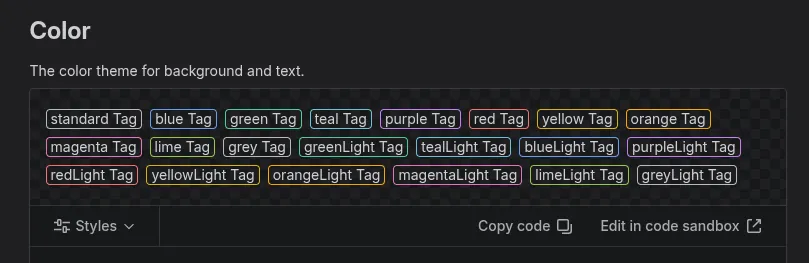
This UI update means that Jira’s new colored labels are barely an improvement on the gray-only labels. Way to go, Atlassian.
How to customize your Jira label colors
Because the native Jira labels basically suck a little bit, you’re best off getting an app from the Atlassian Marketplace.
Yes, I know it’s always annoying to need an app for something as mundane as changing the color of labels in Jira.
That’s why it’s best to get an app that does more than one thing, like Awesome Custom Fields. Unlike dedicated colored labels apps, Awesome Custom Fields adds a range of new custom field types to your Jira, including colored labels. You also get fields like T-shirt sizes for estimating tasks and a cascading select list with unlimited levels—all designed to enhance your project management and give your tickets more at-a-glance clarity and comprehensibility.
Jira color labels in Awesome Custom Fields offer a number of advantages over the native labels. The biggest is color customization. So, instead of random colors, you can have ones that actually make sense, e.g. green “Approved” labels and red “Rejected” ones. You can also create your own visual language for labels that reflects how your team thinks.
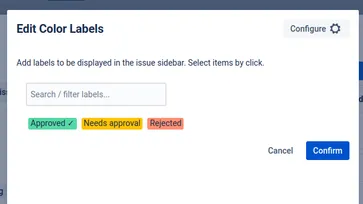
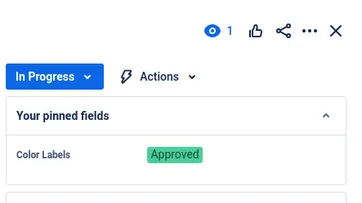
The color labels field also offers additional customization options that you don’t get with native Jira labels:
- You can add icons to the labels to make them stand out even more, e.g. a flag, lightbulb, or star.
- You can set the order in which they appear in the dropdown before you start typing, e.g. you can have your labels in alphabetical order or list certain colors first.
- You can choose from three display styles and create a visual hierarchy that reflects the importance of each label.
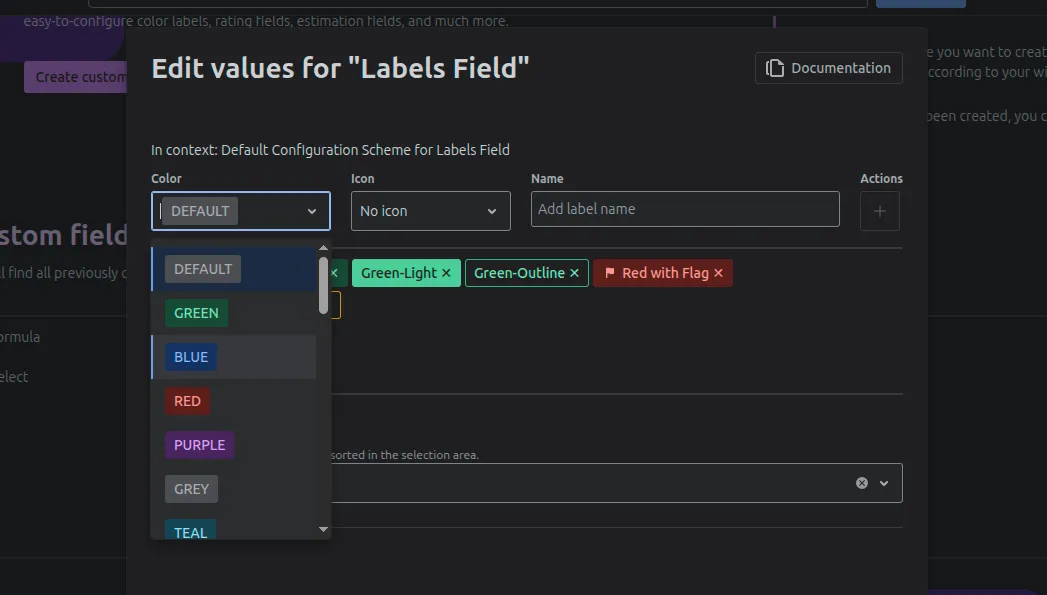
Let’s home in on that last option now.
How Awesome Custom Fields gets around the “outline only” UI update
The team here at Seibert Products weren’t all that impressed by Atlassian’s UI update causing labels to render with blank backgrounds with an outline.
It caused our color labels field to render the same way. This turned the previously vibrant labels our customers were relying on into muted non-signals that blended into the background of their tickets.
To fix the problem, the Awesome Custom Fields developers added a cool new feature that enables teams to create a visual hierarchy using color and weight for their Jira labels.
So, you can now choose how your labels look:
- Filled — bold, high-contrast labels with a solid background. This offers maximum visual impact, ideal where you want instant attention and action.
- Light — a softer tinted background with colored text. This reduces visual dominance while keeping labels distinguishable, i.e. you want people to notice the label but it’s not so important as to compete with core Jira signals like status, priority, and service-level agreement (SLA) indicators.
- Outline — a transparent background with a colored border and colored text. Although similar to the native labels, the native labels are smaller and have black text only. These provide context while remaining visually lightweight. They’re useful when a label is primarily for organization, filtering, and reporting rather than driving immediate action.
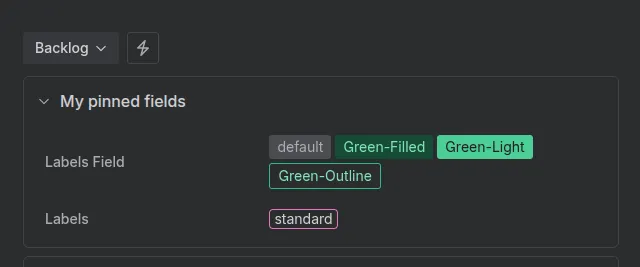
This feature gives teams so much more flexibility than the out-of-the-box Jira labels. A “Blocker” label might warrant a filled red style. “Compliance” and “Customer-Reported” labels might be better suited to a light style. And “Mobile”, “Billing”, and “Documentation” labels could be good candidates for an outline style.
Another advantage: label control
A further drawback of the standard Jira labels field is that it’s a bit of a free-for-all.
Users are able to create a new label right there in the work item just by typing it in. You could end up with variants of the same label, e.g. “Need Approval”, “Needs Approval”, and “Need-Approval”, or duplicate labels because of typos, e.g. “Approved” and “Appproved”.
Users may also create different labels that mean the same thing, e.g. “Needs Approval” and “Needs Review” or “Rejected” and “Declined”.
The color labels field that comes with Awesome Custom Fields gives admins control over the creation of labels. They have to be configured centrally; they can’t be added ad hoc in the ticket. This prevents your instance from getting cluttered.
Color labels for Jira Service Management
Awesome Custom Fields comes with a free extension for Jira Service Management (JSM). There are other apps that offer custom fields for Jira Service Management, but Awesome Custom Fields is one of the few that lets customers see and use those fields in the JSM portal.
This means that, when making service requests, customers can use colored labels to highlight important context. This could be that the issue is customer-facing, affecting production, related to security, or blocking a key business event.
This helps customers communicate the impact of their request more clearly and feel more engaged in the service process. It also enables support agents to understand the impact and context of the issue before they read or even open the ticket.
The upshot
Jira’s slow rollout of colored labels isn’t really an improvement on its long-standing gray labels.
Without color customization, and with the UI update rendering labels as an outline without a background, they’re basically as invisible as they were before.
Plus, labels suck anyway because there’s no central control and any user can create any label on a work item without checking if one already exists.
With Awesome Custom Fields, you get color customization, label control, three display styles, and the options to add icons and set the order that labels appear in the dropdown list.
You also get a whole bunch of other fields that help make your Jira tickets more visual, understandable, and actionable for users, stakeholders, and customers.
Find out more about how to create colored labels in Jira in our documentation.
If you want to customize Jira label colors to communicate information about your tickets with speed, book a personal demo of Awesome Custom Fields. Alternatively you can trial the app for free on the Atlassian Marketplace.