What’s the difference between story, task, and epic in Jira?
If you’ve ever opened Jira and wondered whether your piece of work should be a Story, a Task or maybe an Epic – and then second-guessed yourself – you’re not alone. These items get thrown around like everyone already knows what they mean, but the truth is, even experienced Jira users get confused by how they relate to each other.
And the #1 thing people get wrong? They assume Stories sit above Tasks in some kind of neat chain: Epic → Story → Task → Subtask. It’s intuitive. It makes sense. And it’s completely incorrect.
So let’s clear this up. Not just for software teams running Scrum, but for anyone using Jira. Marketing teams, HR, operations, project managers who just inherited a Jira board and are trying to figure out what goes where. This one’s for all of you.
1. The Jira hierarchy explained: Epic, story, task, subtask, and bug
Before we get into each work type, let’s start with the thing that causes the most confusion. If you only remember one thing from this article, make it this section.
1.1. What is the default hierarchy in Jira?
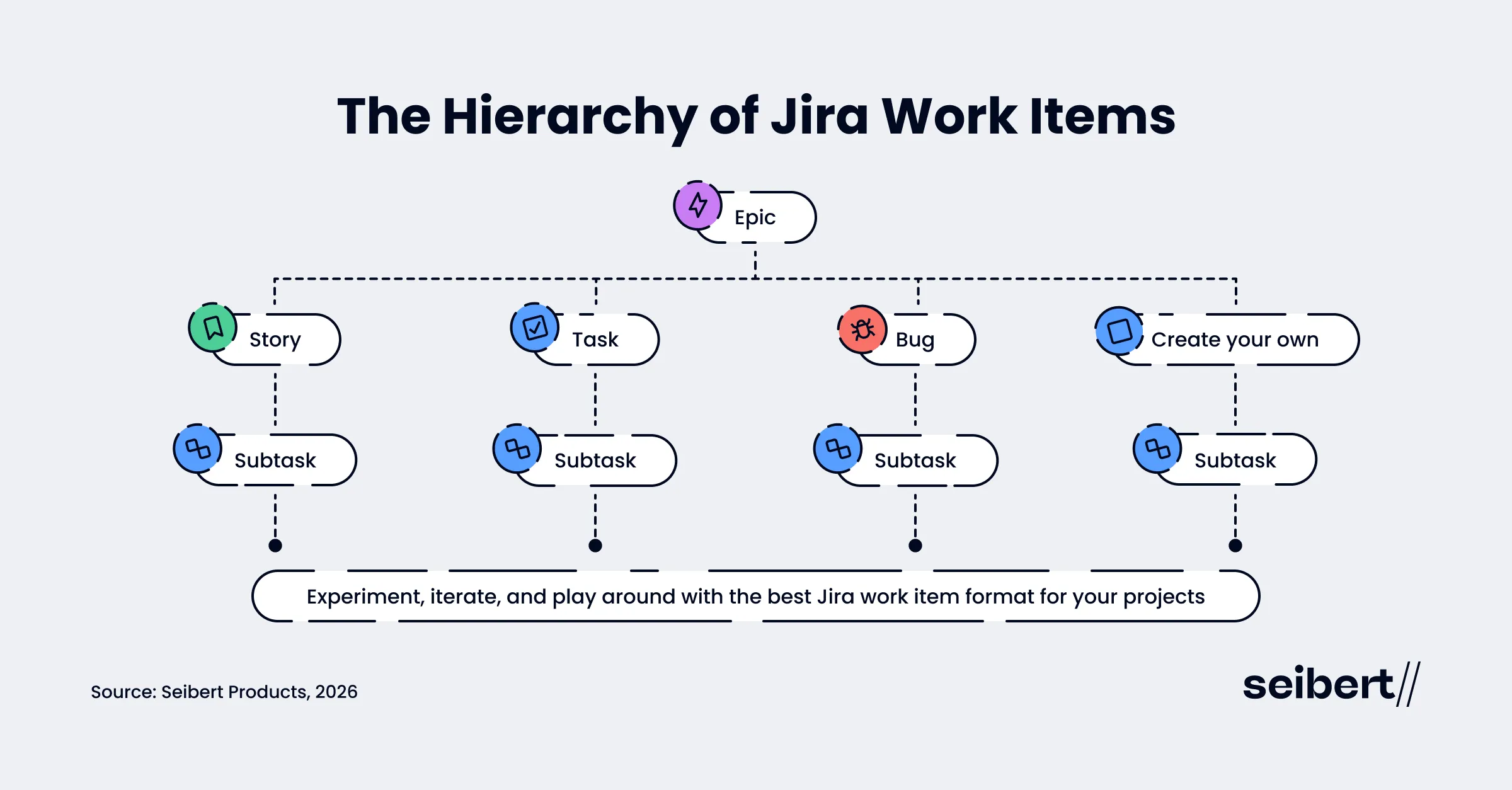
Jira has exactly three hierarchy levels. Not four. Not five. Three.
| Level | Work Types at This Level | Role |
|---|---|---|
| Level 1 (top) | Epic | Large body of work; container for standard-level items |
| Level 0 (standard) | Story, Task, Bug, Create your own | Individual work items – all at the same level |
| Level -1 (sub) | Subtask | Smaller steps within any standard-level item |
Now here’s the part that trips everyone up: A story cannot be a parent of a Task. A Task cannot be a parent of a Story. They’re peers. Stories, Tasks, and Bugs all sit side by side at the same level – one step below Epic, one step above Subtask.
If you’ve been arranging your work as Epic → Story → Task → Subtask and thinking Tasks are “under” Stories… that’s not how Jira sees it. And you’re definitely not the only one. If you’re coming from another tool like Azure DevOps where that hierarchy does exist, this one’s going to feel counterintuitive until it clicks.
💭 From the Atlassian Community
“Why are Tasks and Stories at the same level?”
This is one of the most frequently asked questions on the Atlassian Community, especially from teams migrating from other tools. The question “how do I make Tasks children of Stories?” comes up constantly, and the answer is always: you can’t natively. You’d need a third-party app or a workaround using issue links.
🔗 Read the discussions:
And here’s the second most common complaint:
💭 From the Atlassian Community
“Why can’t I create more levels between Epic and Story/Task?”
People come from project management backgrounds where they want something like Initiative → Feature → Epic → Story → Subtask or at least Epic → Story → Task → Subtask as four levels. But Jira’s built-in hierarchy is three tiers – and that’s it out of the box. You cannot insert a new work type between existing levels, even with Jira Premium. Premium (Plans) only adds levels above Epics, not between them. The answer people keep getting is “use issue links for custom relationships, but you’ll need a marketplace app to visualize them as a tree.”
🔗 Read the discussions:
1.2 Jira hierarchy levels: How to add levels above epic (Plans/Advanced Roadmaps)
Epics are the highest level in Jira’s default hierarchy as Jira ships with three levels. You can’t put another work type above them out of the box. If you need to group multiple Epics under a company-wide initiative, you need Plans (formerly called Advanced Roadmaps), which is only available on Jira Premium and Enterprise. To actually add levels above Epic, Plans is the only native path. It lets you create custom levels like Initiatives, Programs, or Portfolio Epics and associate them with Work Types, giving you a structure that goes from strategic goals down to individual work items without breaking the hierarchy.
If these larger pieces of work are part of a scaled agile process at your company, you definitely want to look into Agile Hive. It’s purpose-built to support SAFe® and extends Jira’s hierarchy beyond what Plans offers – supporting levels like Program Increment, Agile Release Train, and Portfolio Epic.
What about adding levels between Epic and Story/Task? Not possible, even with Plans. Plans only extends upward. For custom relationships at the same level, teams typically use issue links – but those come with significant limitations.
💭 From the Atlassian Community
“Epic is locked at level 1 – and I want infinitely nestable issues.”
These two frustrations show up constantly. Users want to use Epic as a mid-tier concept and put something larger above it – but Plans lets you add hierarchy above Epic, not between Epic and Story. You can’t push Epic itself up to level 2 and insert something new beneath it. For those who want arbitrary parent-child nesting (Epic → Feature → Story → Task → Subtask, or even deeper), Jira’s answer is always “use issue links”. However, the issue links don’t create a true hierarchy. They lack rollup reporting, visual tree views, and sprint inheritance, which are the reasons people want nesting in the first place. This is what pushes teams toward marketplace apps that offer custom hierarchy visualization on top of issue links.
🔗 Read the discussions:
2. Jira work items explained: Epic vs story vs task vs subtask vs bug
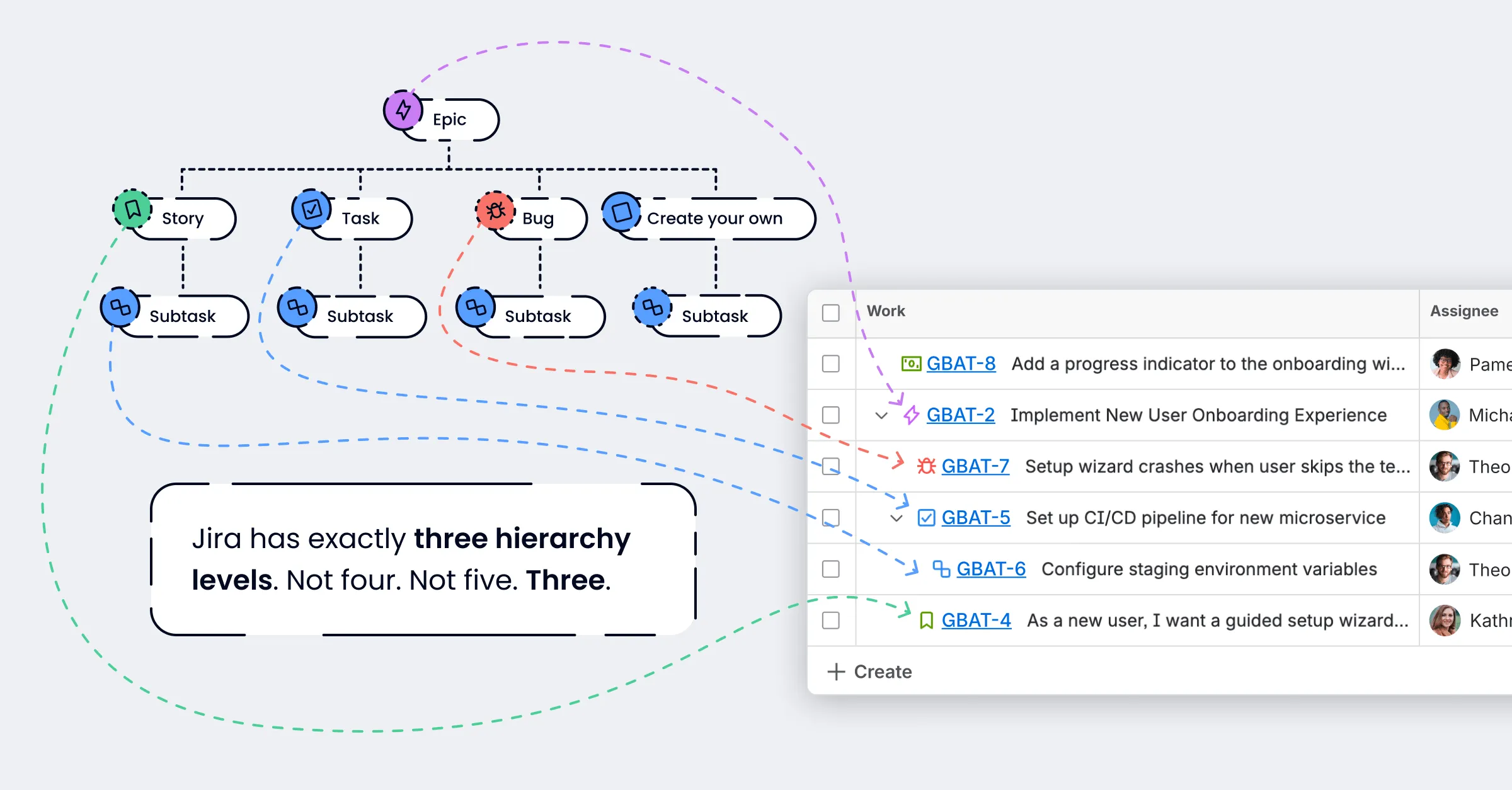
Now that we’ve got the hierarchy sorted, let’s look at each work type on its own. What makes an Epic different from a Story? When should you use a Task instead? What’s the deal with Subtasks?
What are Jira work items (issues)?
In Jira, everything you track is a work item (historically called an “issue”). Work types define what kind of work it is. They’re how you organize everything from big strategic initiatives down to small action items. Essentially, they’re the building blocks of Agile project management, helping teams prioritize, track progress, and stay aligned.
2.1 What is an epic in Jira?
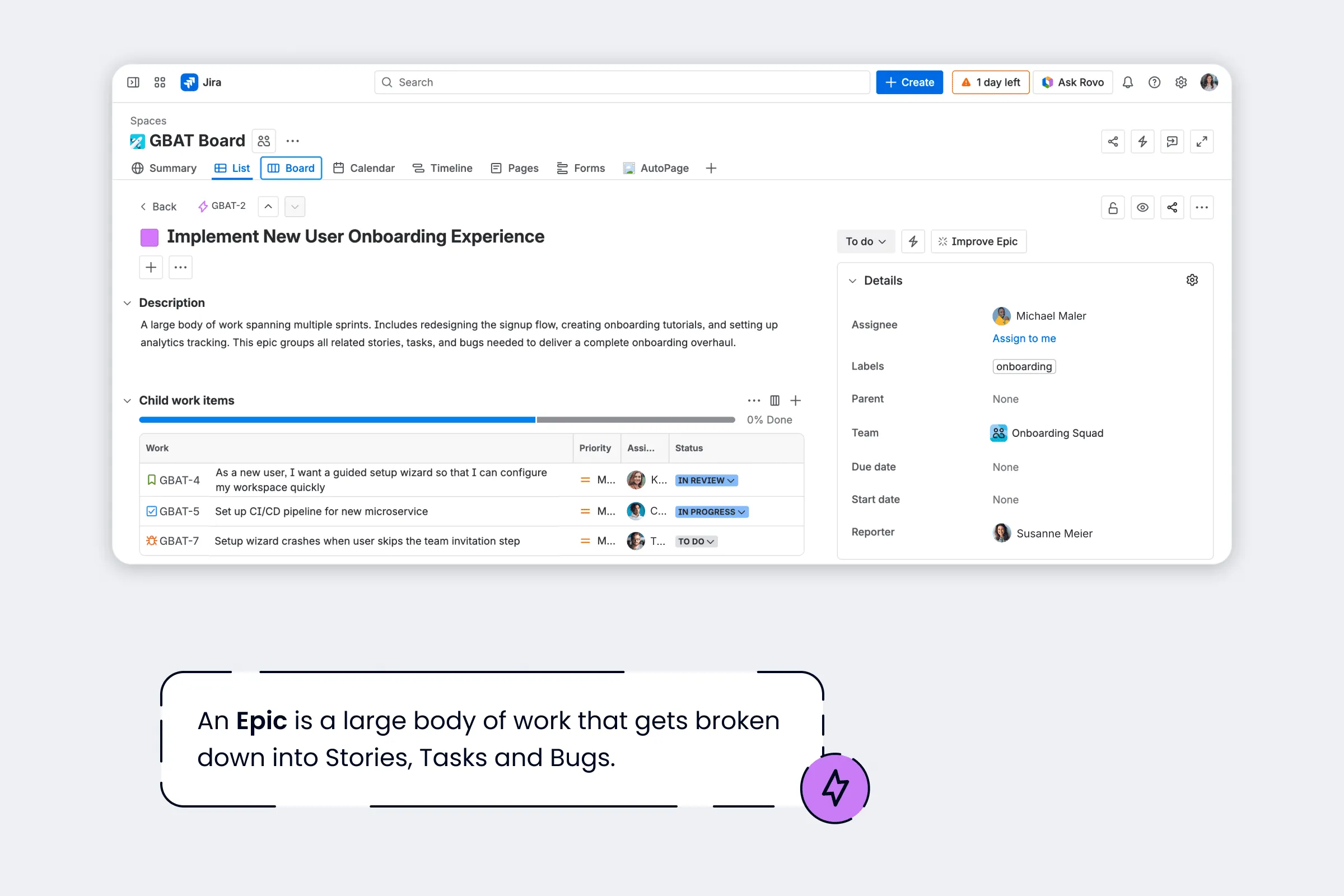
An Epic is a large body of work that gets broken down into Stories, Tasks and Bugs. Think of it as an umbrella grouping related work under a shared goal. Something like “Implement new user onboarding experience” or “Migrate to new payment provider”.
What makes epics so special compared to other work types:
-
Board visibility: Every Epic gets its own color – a visual identifier that no other work type has. That color shows up as a marker on board cards, on timeline bars, and as an option for swimlanes, making it easy to see at a glance which initiative a piece of work belongs to. And if you want Epics themselves to appear as cards on your Scrum or Kanban board, you can – it just takes a bit of configuration. In company-managed Scrum projects, you’ll need to add the Sprint field to the Epic’s screen and assign the Epic to an active sprint. On Kanban boards, there’s a board setting to display Epics as cards directly. Note that this doesn’t work in team-managed projects, where you’ll need to use the Timeline or Epic panel instead.
-
Swimlanes: You can group your board by Epic, which creates swimlanes – horizontal rows that separate cards by which Epic they belong to. This is especially useful on busy boards where you want to see progress per initiative without switching views.
-
Timeline integration: Epics plug into Jira’s Timeline view, giving you a visual roadmap. One thing to note here is that the timeline behaves differently in Software projects versus Business projects (formerly Jira Work Management).
-
Epic-level reporting: Jira offers a dedicated Epic burndown report that tracks the progress of all child issues (Stories, Tasks, Bugs) grouped under an Epic. This gives you a bird’s-eye view of how a larger initiative is progressing across multiple sprints. This is something you don’t get at the individual Story or Task level.
-
Cross-project spanning: Epics can span multiple projects – a Story in Project A and a Story in Project B can both belong to the same Epic, which makes them useful for cross-functional initiatives. However, Subtasks are strictly confined to the same project as their parent. This catches teams off guard when they try to share sub-work items across team projects. If you need cross-project work at the subtask level, consider using standard-level Tasks linked to the Epic in each project instead. Check out the discussion on the Atlassian Community.
The #1 epic misuse: permanent containers.
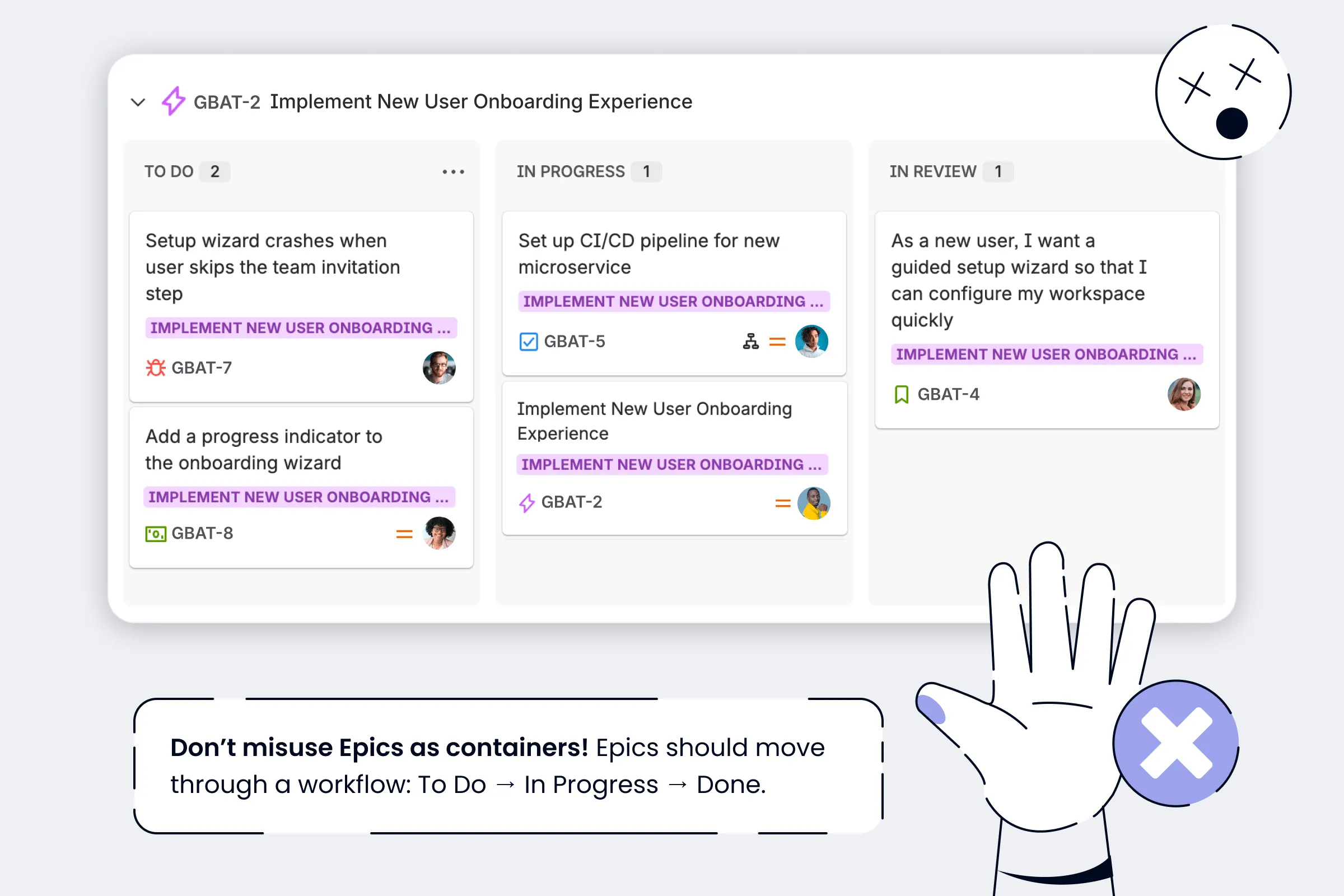
Someone creates an Epic called “Social Media” or “Events” and it just… sits there. Forever. Never changes status. Never moves to Done. That’s not an Epic – that’s a label. Epics are work items. They should move through a workflow: To Do → In Progress → Done. If your Epic never closes, you probably want Jira’s Labels or Components feature instead.
This is actually one of the most common conceptual mistakes teams make with Jira – especially those just getting started. They treat one Epic as an entire project, using it as a permanent container for everything related to a topic. But a Jira project is a container for how issues are managed and reported: it handles financials, RAID logs, and cross-team governance. An Epic is a large chunk of work within a project, not a replacement for one. Stories from multiple projects can belong to the same Epic, but that doesn’t make the Epic a project. (The Atlassian Community regularly corrects this).
We get why people do this, though. Epics give you that color-coded visual cue on boards that plain Labels don’t – and Jira’s native labels are just grey. Especially since the recent UI refresh made labels even more subdued and monochromatic, it’s tempting to keep a permanent Epic around just for that at-a-glance categorization.
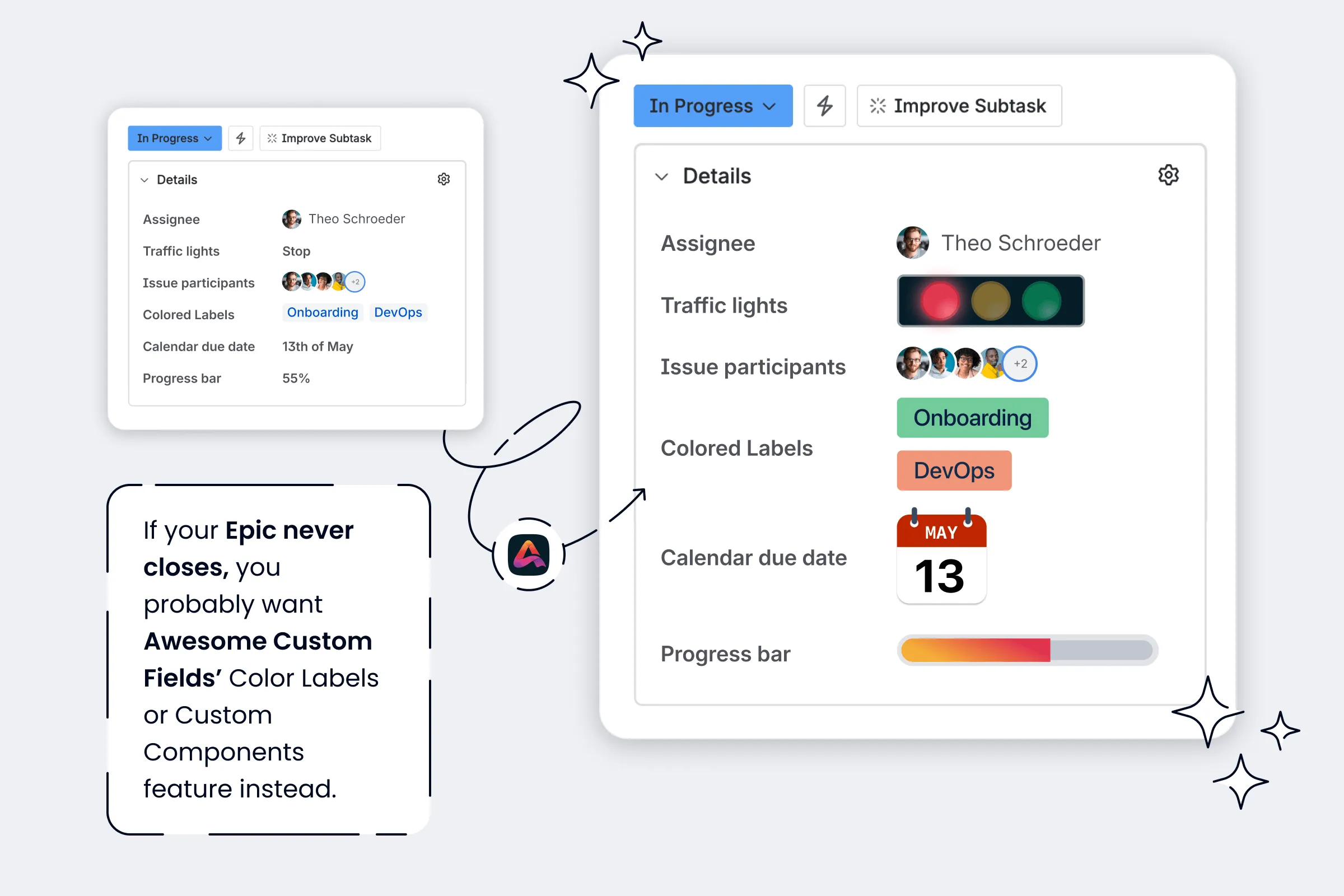
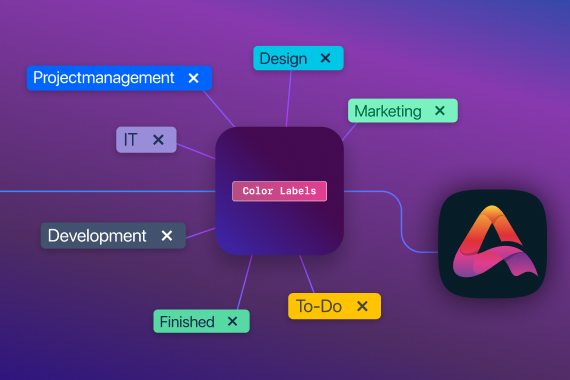
But there’s a better way: Awesome Custom Fields includes a Color Labels field that brings that visual clarity back. You get three display styles – Filled for maximum impact, Light for softer tinted backgrounds, and Outline for minimal structure – plus icon support from Atlassian’s standard icon set, so a “Security” label can carry a shield and a “Blocker” a warning triangle. Color and shape together make recognition faster and because admins predefine the labels, you avoid the duplicate mess that comes with native Jira labels. Read more from developer Paul Pasler on all the Jira color label options available.
2.2 What is a story in Jira?
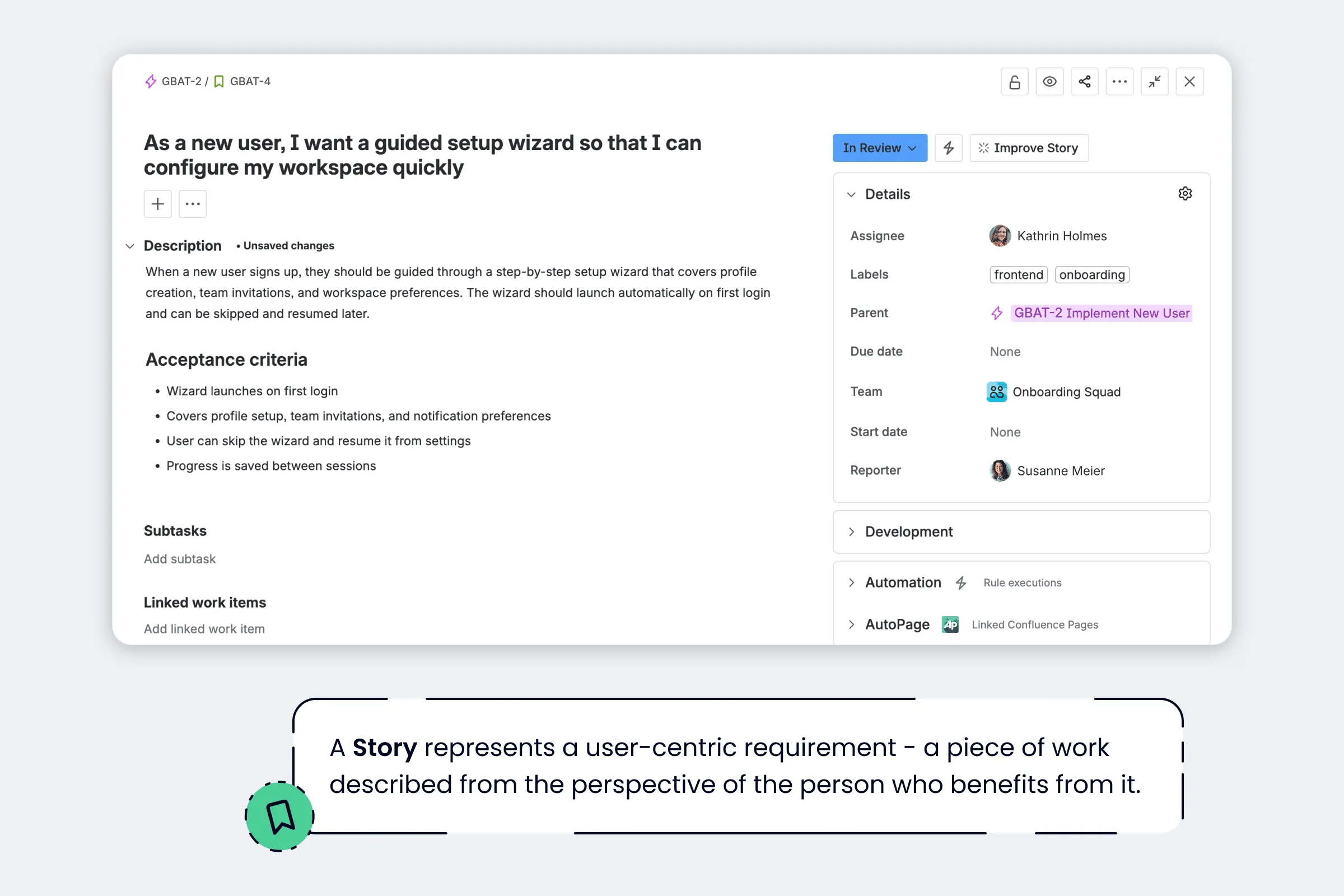
A Story represents a user-centric requirement – a piece of work described from the perspective of the person who benefits from it. The classic format is: “As a [user], I want [goal] so that [benefit]”. Something like: “As a new user, I want a guided setup wizard so that I can configure my workspace quickly”.
That format is an Agile/Scrum convention, mostly used by software teams. If you’re a marketing team or an HR team, you don’t have to write Stories that way. You can use them however makes sense for capturing user value.
The key thing: Stories are at the same level as Tasks and Bugs. They are not above Tasks in the hierarchy. The difference isn’t size or importance, it’s perspective. Stories focus on what the user needs. Tasks focus on what the team needs to do.
Want to learn more about writing effective user stories? Check out our blog article on Jira User Story Templates.
And you don’t have to start from scratch every time. Templating.app lets you set up reusable templates with the right fields, description structure, and acceptance criteria already baked in.
2.3 What is a task in Jira? (and how is it different from a story?)
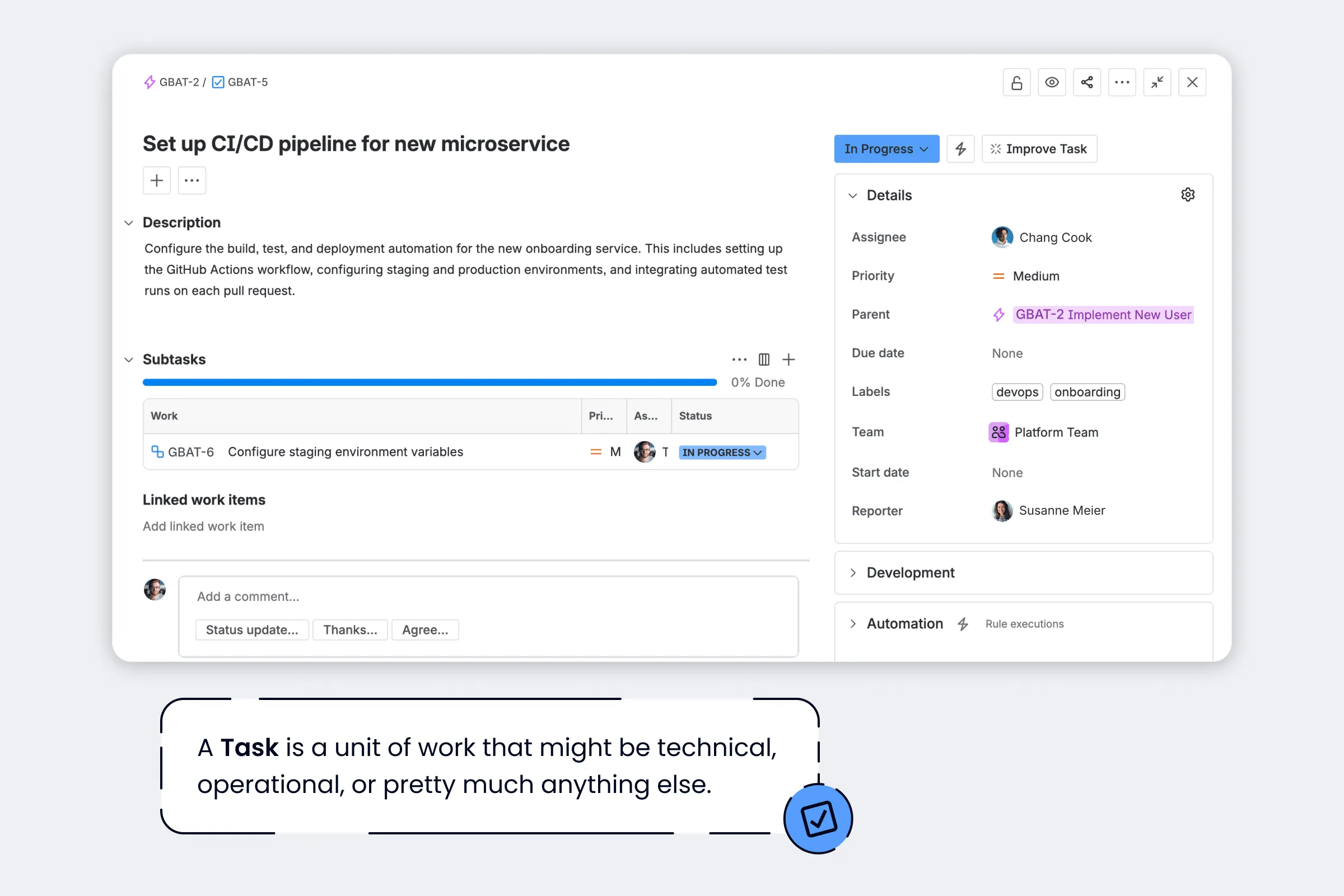
A Task is a unit of work that might be technical, operational, or pretty much anything else. Unlike Stories, Tasks don’t need to be framed around user value. They’re just work that needs to get done.
Here’s a misconception worth killing: Tasks are not smaller than Stories. A Task can be exactly the same size and complexity as a Story. The difference is intent, not scale. Stories are user-centric (“As a user, I want…”). Tasks are action-oriented (“Set up CI/CD pipeline”, “Review the Q3 budget”).
And because Tasks aren’t limited to software development, they show up across all kinds of teams:
-
Software: “Set up CI/CD pipeline for onboarding microservice”
-
Marketing: “Create Q2 campaign landing page”
-
HR: “Schedule onboarding sessions for April hires”
Same work type, totally different contexts. That’s the flexibility.
2.4 What is a subtask in Jira? Limitations you need to know
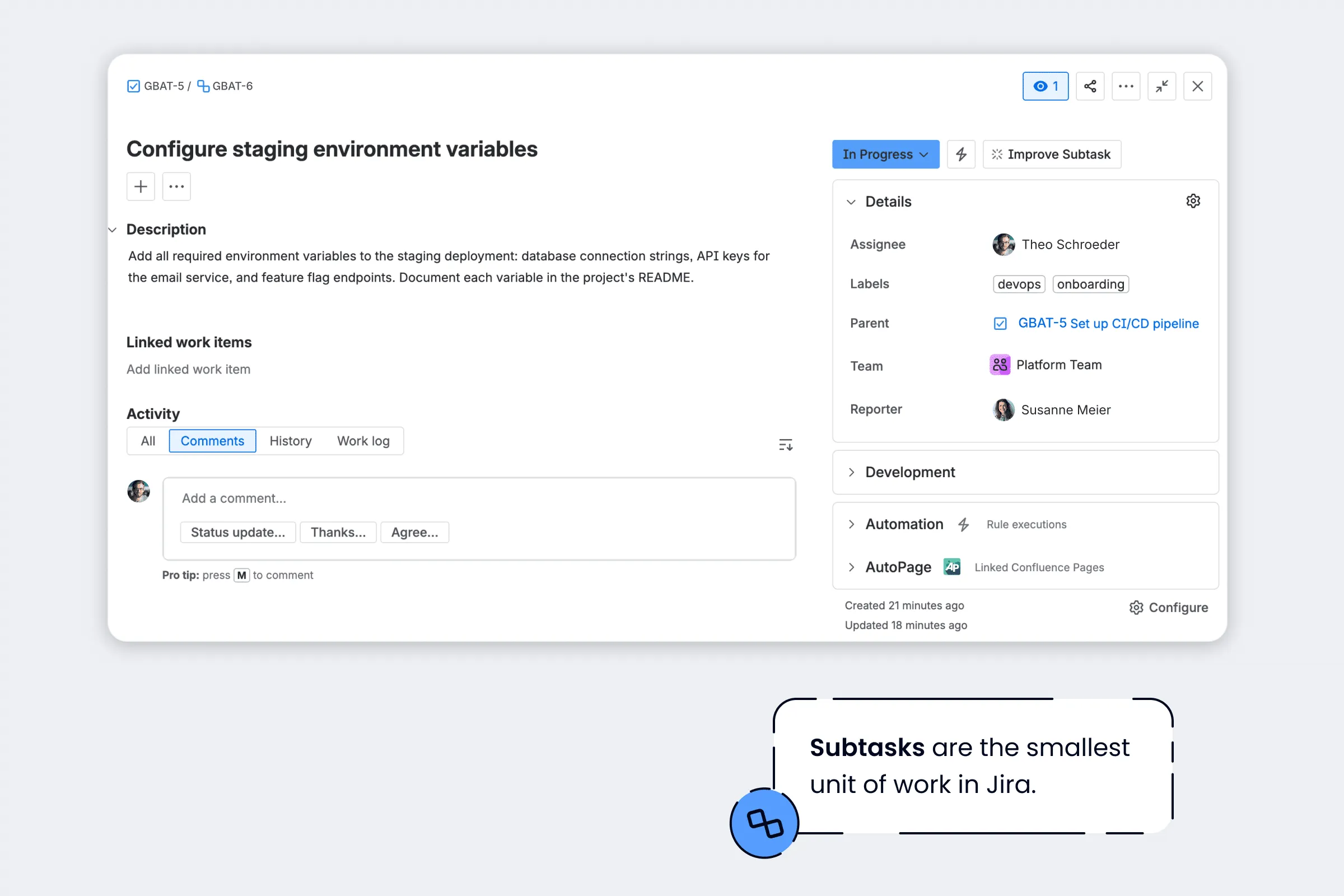
Subtasks are the smallest unit of work in Jira. They break down a Story or Task into clear, actionable steps – things like “Configure staging environment variables” or “Draft acceptance criteria for the wizard”.
They’re useful for splitting work among team members so multiple people can tackle different parts of the same issue in parallel. But Subtasks come with some real limitations that every team should understand.
Board visibility: Subtasks don’t show up on boards the same way Stories, Tasks, and Bugs do. They won’t appear as individual cards in your Kanban or Scrum columns unless you specifically configure them.
Sprint reports – this is the big one: Sprint burndown and velocity reports are calculated at the Story/Task level, not at the Subtask level. Subtask estimates and story points are not independently counted in sprint reports — only the parent issue is. Teams that do all their estimation at the Subtask level are regularly surprised to find reports not reflecting their work accurately. If your burndown looks flat despite closing dozens of Subtasks, this is why. Want to read more? Have a look at this discussion about Jira hierarchy and Epic/Story vs Story/subtasks logic.
Sprint inheritance: Subtasks inherit their sprint from the parent issue. You can’t assign a Subtask to a different sprint than its parent, and there’s no workaround for this within native Jira. You also can’t move only incomplete Subtasks to the next sprint without moving the parent along with them. Jira treats the parent as incomplete until all Subtasks are done and moves the whole thing as a unit. People want the ability to span Subtasks across sprints for legitimate reasons, but Jira’s philosophy is: “If your Story/Task doesn’t fit in one sprint, split it into smaller pieces.” Read the discussions on the Atlassian Community:
- Alternatives to putting subtasks in different sprints?
- What is the right approach to move incomplete sub tasks to next sprint
- How to move ONLY the remaining sub tasks to new Sprint?
Same-project constraint: Subtasks must stay in the same project as their parent issue. You can’t create a Subtask in Project B that belongs to a Task in Project A. This means if your Epic spans multiple projects, the Subtasks in each project are siloed – you won’t be able to group them under a shared parent across project boundaries.
No nesting: You can’t create a Subtask under another Subtask. The hierarchy stops here – one level, that’s it. If you find yourself wanting to nest deeper, it’s usually a sign that the parent Story or Task should be broken into multiple smaller Stories or Tasks instead.
💭 From the Atlassian Community
“Can I put subtasks directly on an Epic?”
Occasionally users stumble into a state where Subtasks appear directly under Epics – usually via a move or bulk edit operation gone wrong. Atlassian’s official response is that this isn’t recommended but isn’t strictly blocked in all cases. People trying to replicate it intentionally get confused because the UI doesn’t surface it as a standard workflow. If you need work items under an Epic, create a Story or Task first, then add Subtasks to that.
🔗 Read the discussion:
When should you use Subtasks vs checklists? If you’ve got dozens of small steps that one person will work through, a checklist is simpler and doesn’t clutter your board or backlog. Didit Checklist for Jira lets you add checklists directly to any issue – quick to set up, easy to tick through, and nothing extra showing up in your backlog. Use Subtasks when you need to assign work to different people, track time on individual steps, or have items appear as their own entries on the board. A good rule of thumb: if you need to know who is doing each step and when it got done, make it a Subtask. If you just need a to-do list to work through, a checklist with Didit will save you time and keep your backlog cleaner.
3. Jira story, task, and epic: Best practices for your team
3.1 How to keep Jira issue creation consistent across your team with Templating.app
Here’s a scenario that probably sounds familiar: your team is growing, more people are creating work items in Jira, and suddenly every Epic looks different. Some have detailed descriptions, others are just a title. Stories are missing acceptance criteria. Tasks have no consistent structure. And backlog grooming turns into a cleanup exercise instead of a planning session.
Templating.app solves this by letting you define reusable templates for every work type – Epics, Stories, Tasks, Subtasks – with preconfigured fields, descriptions, subtask lists, and checklists. When someone creates a new issue, they start from a template instead of a blank slate. Consistent structure, every time.
3.2 When to use a story vs task vs epic in Jira
-
Define what each level means for your team. How a Story differs from a Task might look different for a software team than for a marketing team. Write it down so everyone’s on the same page.
-
Epics should have an end date. If it’ll never move to Done, it’s not an Epic – it’s a label. Use Labels or Components instead.
-
Don’t treat Epics as projects. An Epic can live within one project or span several. A Jira project is a container for management and reporting. They’re not the same thing.
-
Align with Agile ceremonies (if using Scrum). Epics for roadmap planning, Stories and Tasks for sprint commitments, Subtasks for the details you discuss in daily stand-ups.
-
Groom your backlog regularly. Stale work items and messy hierarchy make planning harder over time. Future-you will be grateful.
-
Plan around Subtask limitations. They don’t always show up in sprint reports, they can’t be in a different sprint than their parent, and they’re invisible on boards by default. Factor that into your sprint planning. And if a Story is too big for one sprint? Split it into smaller Stories instead of stretching Subtasks across sprints.
4. Jira epic vs story vs task: Getting the Jira hierarchy right
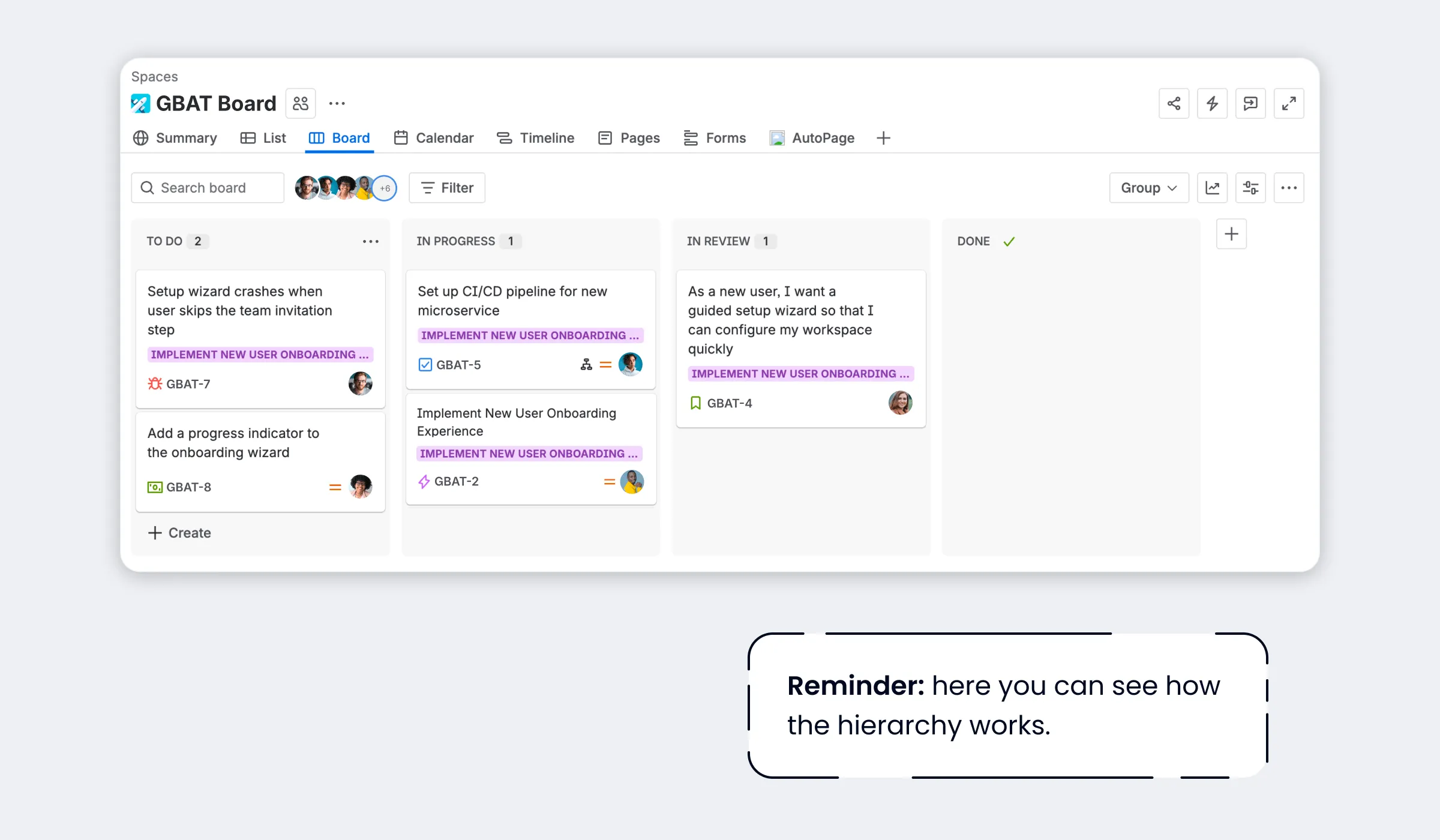
Jira’s hierarchy is actually simpler than most people think – once you know the real structure. Three levels: Epics at the top, Stories/Tasks/Bugs as equal peers in the middle, Subtasks at the bottom. No hidden nesting. No Stories-above-Tasks chain.
Get the hierarchy right, understand the Subtask quirks (especially around sprint reports and board visibility), and you’ve got a solid foundation. If you need more than three levels, Plans is there when you’re ready.
And whether you’re a software team, a marketing squad, an HR department, or something else entirely – a clear hierarchy makes the difference between a Jira board that helps your team and one that just confuses everyone.
5. Jira epic vs story vs task: Frequently asked questions
These aren’t theoretical questions – they’re the ones that come up again and again on the Atlassian Community. If you’ve ever Googled one of these at 9 PM while setting up your Jira project, you’re in good company.
Hierarchy & structure
Q: Can an Epic have a parent in Jira?
A: Not in Jira’s default hierarchy – Epics are the top level. If you want to group Epics under something larger (like an Initiative or Program), you’ll need Jira Premium or Enterprise with Plans (formerly Advanced Roadmaps), which lets you add custom levels above Epic. If you’re scaling agile with SAFe®, Agile Hive takes this further with levels like Program Increment and Portfolio Epic.
Q: Can a Story be a parent of a Task (or vice versa)?
A: No. Stories and Tasks sit at the same hierarchy level – neither can be a parent of the other. You can link them (using “blocks” or “relates to”), but that’s a relationship, not a parent-child connection.
Q: Can an Epic span multiple projects?
A: Yes! Stories in Project A and Project B can both belong to the same Epic. But Subtasks have to stay in the same project as their parent – no exceptions.
Q: Can I see Epics, Tasks, and Subtasks as a nested hierarchy in the Timeline view?
A: It depends on your project type. In Software projects, the Timeline (formerly Roadmap) view does a reasonable job of displaying the Epic → Story/Task → Subtask hierarchy as a nested tree. In Business projects (formerly Jira Work Management), the experience is more limited – Tasks and Epics often appear as flat, unrelated items rather than in a clear parent-child structure. This has been a known gap for years, and the Atlassian Community has been asking for improvements (here and here). If nested timeline visibility is important to your team, Software projects are currently the more reliable option.
Q: How do I add levels above Epic in Jira (like Initiatives or Programs)?
A: You need Jira Premium or Enterprise with Plans (formerly called Advanced Roadmaps). Plans lets you add custom hierarchy levels above Epic – Initiatives, Programs, Portfolio Epics, or whatever your organization needs. You create levels and associate them with Work Types (what Atlassian used to call Issue Types), giving you a structure that goes from strategic goals all the way down to individual tasks. If your organization practices SAFe®, Agile Hive can connect Jira’s hierarchy to Program Increments, Agile Release Trains, and Portfolio levels – so you get the full SAFe structure without configuring it all manually.
Q: What are the risks of changing Jira’s work type hierarchy?
A: Modifying the Work Type hierarchy can break existing parent-child work item relationships across your plans and company-managed projects. Jira will calculate the impact and ask for confirmation before applying changes — but once saved, they can’t be undone. So review the impact carefully before you hit that button. One clarification that trips people up: this affects parent-child links between work items, not “workflows.” Workflows are a separate Jira concept that control status transitions (like To Do → In Progress → Done). Easy to confuse, but they’re different things.
Subtasks
Q: Why can’t I assign Subtasks to a different sprint than their parent?
A: Subtasks inherit their sprint from the parent Story or Task. Jira treats the parent as incomplete until all Subtasks are done. If your Story doesn’t fit in one sprint, split it into smaller Stories.
Q: Can I create a Subtask under a Subtask?
A: No. Subtasks are the bottom of the hierarchy. No nesting allowed. If you need more granularity, try a checklist.
Q: Why don’t my Subtasks show up in sprint reports?
A: Sprint burndown and velocity are calculated at the Story/Task level. Subtask story points aren’t counted independently. If your reports look flat despite lots of completed Subtasks, that’s why. Consider promoting important Subtasks to Tasks instead.
Q: Subtasks vs. Checklists – which should I use?
A: Subtasks when you need to assign work to different people, track time, or see items on the board. Checklists when one person is working through a list of smaller steps. Both are valid – just pick what fits.
Work types & practical how-to
Q: What is a Bug in Jira, and why not just use a Task?
A: A Bug tracks something that’s broken – what’s supposed to happen and what’s actually happening don’t match. Like Stories and Tasks, Bugs sit at the standard hierarchy level. The reason to use a Bug instead of a Task labeled “fix this” is reporting: having Bugs as their own work type lets you filter for them, track them separately, and spot patterns – like most bugs in a sprint tracing back to the same Epic. The distinction is simple: a Bug says “this is wrong,” a Task says “this needs doing.”
Q: How do I write a good Jira Story?
A: Start with: “As a [user], I want [goal] so that [benefit].” Add acceptance criteria so everyone knows when it’s done. Keep it small enough for a sprint. Check out our guide on Jira User Story Templates and our use case on acceptance criteria for a deeper dive.
Q: How do I delete an Epic or Task?
A: Open the issue → “More” (⋯) menu → Delete. Heads up: deleting an Epic doesn’t delete its child Stories or Tasks — they stay in the project but lose the Epic link. Since it’s permanent, consider closing or archiving instead. Your ability to delete depends on whether you’re in a Company-Managed or Team-Managed project, plus your admin level.