

Summary
- Jira automation is a powerful rule builder that lets you create automation flows using a trigger to start it, a condition to dictate when it happens, and an action to perform a task in your Jira.
- You can create an automation flow in Jira in three ways: from scratch, with Atlassian Rovo, or by using a template.
- Jira automation pain points and pitfalls mainly relate to things that happen after a rule has been created, which Rovo and templates don’t really help with (much).
- Sometimes it’s sensible to use an Atlassian Marketplace app instead of Jira automation. First, Jira automation can be complex and a Jira add-on can do the job more easily. Second, some functions should be product capabilities, not automation rules.
- Templating.app (for auto-generating predefined Jira work items), Didit (for creating reusable Jira checklists), and AutoPage (for turning Jira tickets into Confluence pages) are three app alternatives to Jira automation.
Jira automation: powerful but sometimes painful
Jira automation is the most popular way of speeding up your Jira workflows and reducing manual effort. It’s also one of the most powerful features available to space and global administrators.
Of course, with great power comes great complexity. And creating, running, and maintaining Jira automation rules (renamed “flows” in 2026) is one of the best ways to get into an enormous mess.
Hundreds of users have taken to Reddit or the Atlassian Community to complain that their automations aren’t working. The pain points usually boil down to a lack of understanding of execution context, permissions, smart values, branching logic, timing, and scale.
Atlassian have tried to help struggling users by offering pre-built templates for common use cases, but these reduce the chance of building a bad rule. They don’t really solve the problem of good rules behaving badly in operation.
This is why, sometimes, Jira automation is just too much machinery for such a small job. An app that does the same job without the complexity could be a smarter call.
In this article, we’ll cover the basics of Jira automation, how to create a Jira automation rule/flow, and common pitfalls.
We’ll also cover some alternatives to Jira automation if you’d rather have a colonic irrigation than dabble with automation rules.
What is Jira automation?
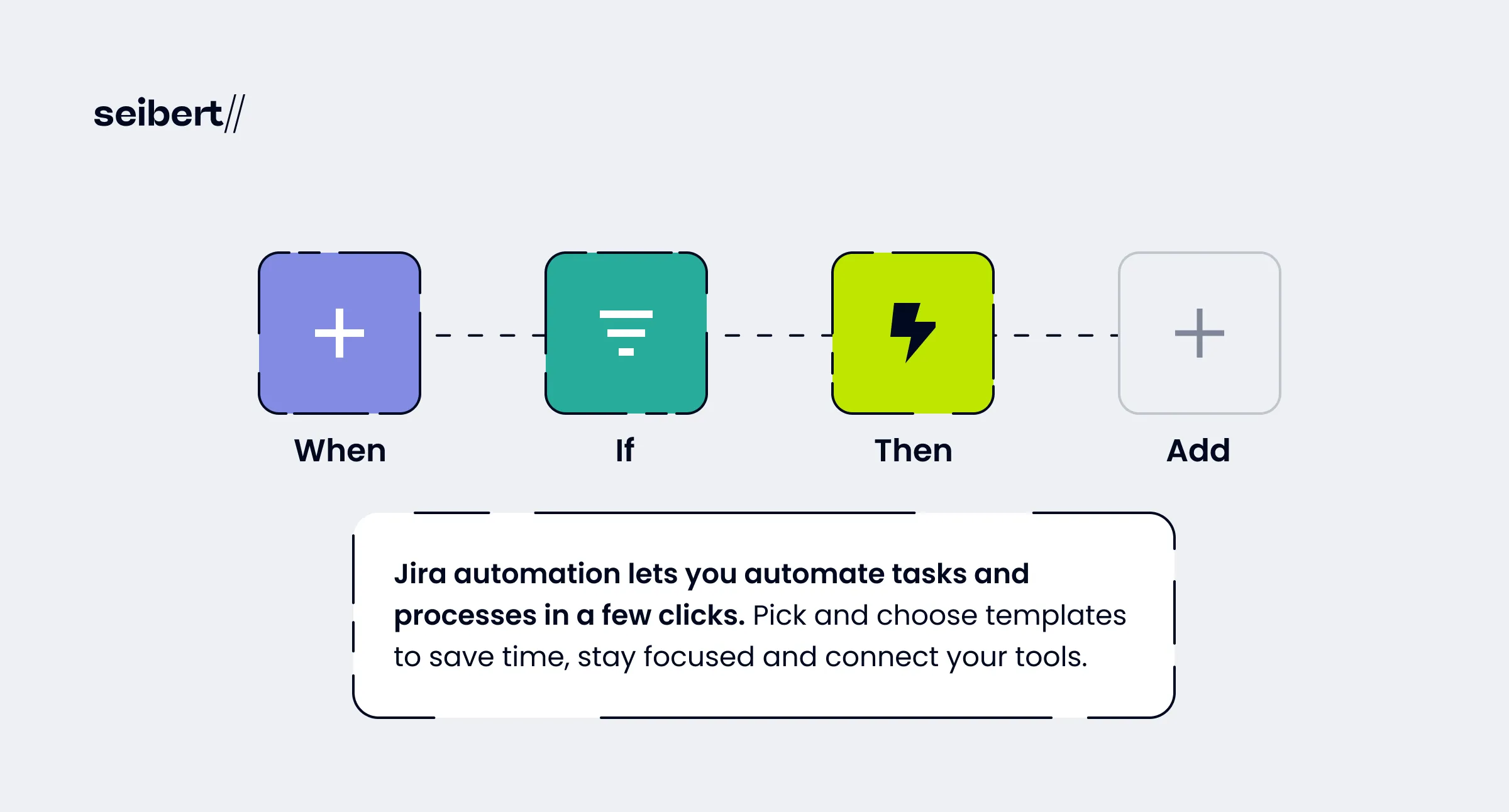
Jira automation is a rule builder that allows users to create if this – then that behaviors based on a wide selection of events, e.g. when a space is created or a Jira work item is transitioned.
It began life as a Jira app from Code Barrel, which was purchased by Atlassian and made available natively in 2019. It has since become the most popular way of automating your Jira workflows.
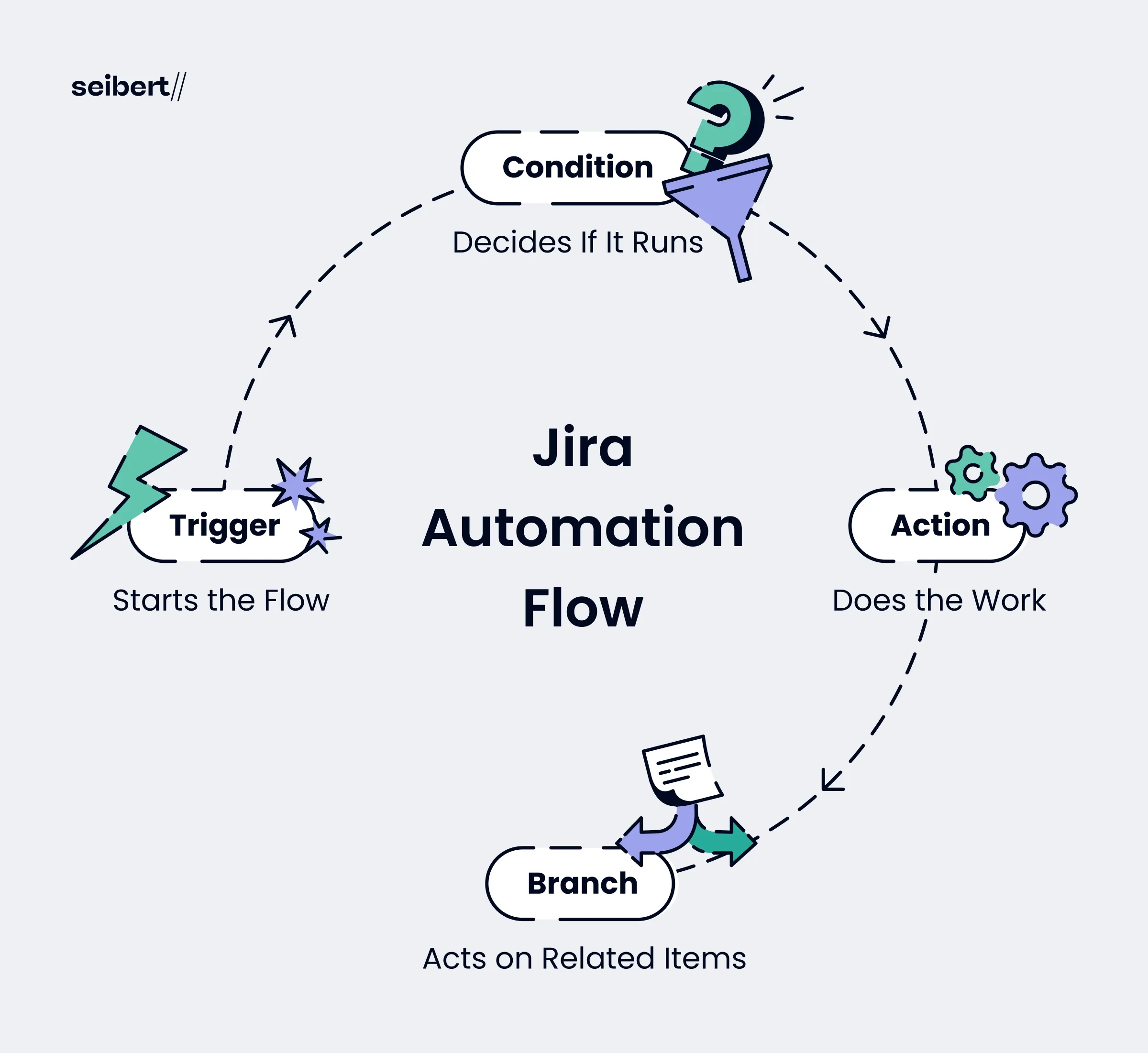
To automate an action in Jira, you build a rule or flow. An automation flow has three parts:
- a trigger that kicks it off
- a condition that has to be met for the rule to run
- an action that performs a task in your Jira
For example, a task is assigned to a particular user (action) when the work item is created (trigger) and the work item type is “bug” or the component is “UI” (condition).
Then there are additional features that make your automation flows more flexible.
You can use branching to perform actions against related work items, e.g. when a subtask moves to “In progress”, the parent task moves along with it.
You can also add smart values, which are dynamic placeholders that allow you to reference changing information in Jira automation flows. So if you use {{issue.key}} instead of an actual key like “ACSM-3482”, your rule can apply to a wide range of work items. When it runs, {{issue.key}} gets replaced with the key of the active work item.
Smart values in Jira automation still use the old terminology for work items and spaces: issues and projects. So it’s {{issue.key}} and {{project.id}}, not {{workitem.key}} and {{space.id}}. I know, not very helpful, is it.
And yes, we agree, the name change from “Jira automation rules” to “Jira automation flows” was especially pointless, which is why this article uses both.
What is Jira automation used for?
There are lots of repetitive, routine actions in Jira that are ripe for automation:
- Creating Jira work items
- Populating fields on work items
- Assigning work items
- Transitioning parent work items when all subtasks are completed
- Closing stale work items after a period of inactivity
- Creating Confluence pages from Jira work items
- Escalating overdue work items or service-level agreement (SLA) breaches
- Calculating field values
- Adding checklists
- Adding comments or attachments
- Sending emails or Slack messages
These are only a few of the actions that you can automate to reduce your admin overhead, minimize human error, and increase efficiency and consistency in your Jira work.
What are Jira automation service limits?
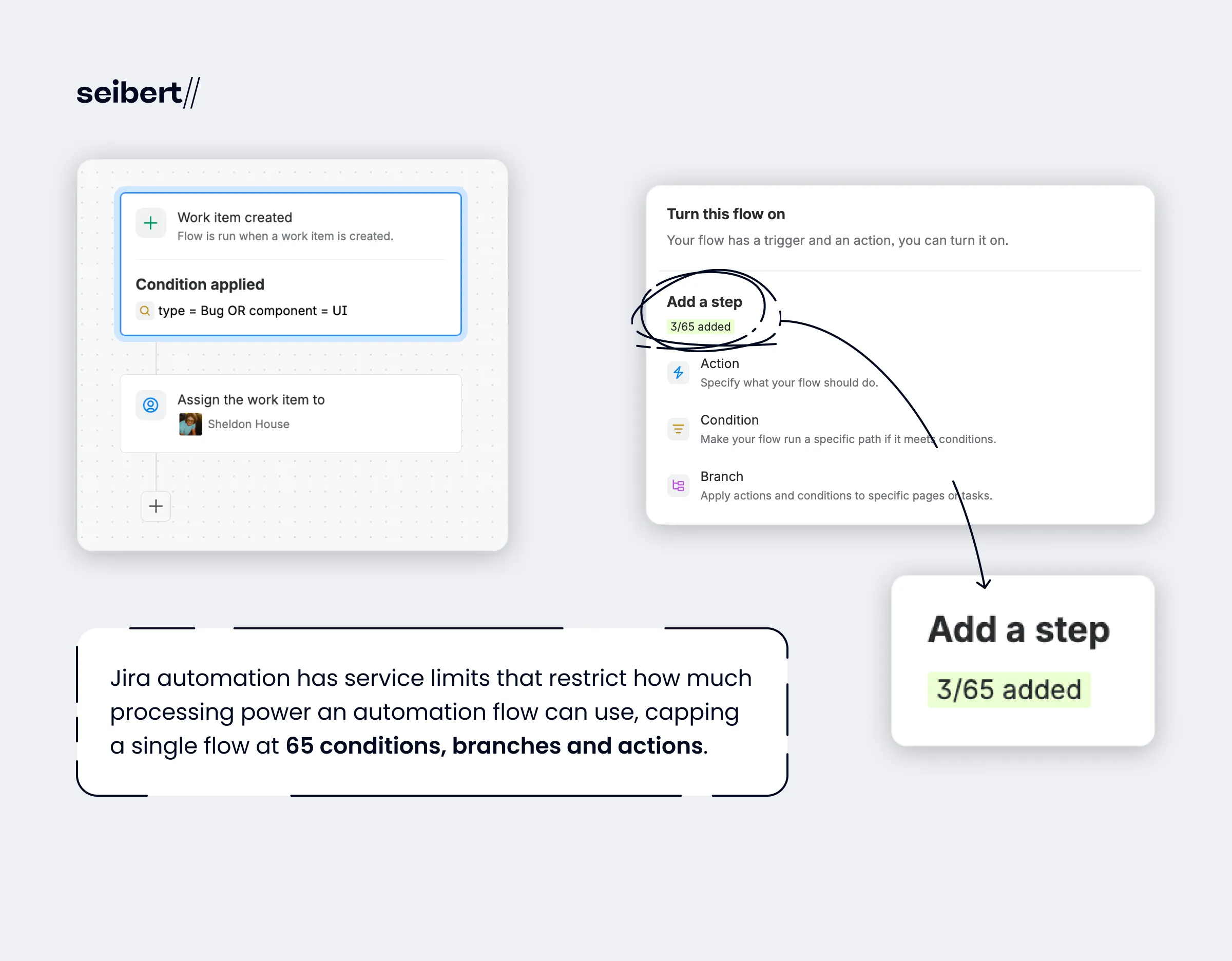
Jira automation has service limits that restrict how much processing power an automation flow can use. Service limits keep your rules in check to ensure the good performance of your Jira instance.
For example, a single automation flow can’t contain more than 65 conditions, branches, or actions.
When a rule breaches a service limit, the rule will stop executing and be marked THROTTLED in your audit log. It may also be disabled, i.e. completely turned off.
What are Jira automation usage limits?
Jira automation has monthly usage limits, which means your rules/flows can only run a certain number of times each month depending on your plan.
Your rule has to run successfully and perform at least one action to count as a rule run. If the rule is triggered but the conditions aren’t met and the action isn’t performed, this doesn’t count as a run.
The limits range from 100 runs per month on the Free plan to 1,000 runs per user per month on the Premium plan. The Enterprise plan offers unlimited automation rule runs.
So with all plans apart from Enterprise, it makes sense to optimize your automation usage. Even the high limits get used up quickly. If they do, all your Jira automation rules will be paused until next month, when the limits reset.
One of the ways to optimize your usage is to use other forms of automation, like Atlassian Marketplace apps or post-functions. Let’s cover post-functions next.
Jira automation vs Jira post-functions
Jira automation isn’t the only form of automation available in native Jira. Post functions are another.
Post functions are automated actions that trigger when a Jira work item transitions between statuses, e.g. updating the Resolution field in a work item after it moves to “Done”.
Jira automation flows can have all kinds of triggers. Work item transitions are only one of them. Other triggers available are scheduled times, field updates, requests sent from external tools, and changes to related work items. So Jira automation is much broader and more flexible and can span multiple Jira spaces, workflows, and external systems.
Post functions are great for performing simple actions tied to a single workflow transition. You add them from inside the Workflows editor and are limited to the built-in post functions Jira provides, including:
- assign to current user
- clear field value
- update field
Out of the box, you can’t create your own post functions, whereas you can build all kinds of automation rules. But it does mean that post functions are much easier to configure and less likely to break. And another major advantage of post functions is that they don’t count towards your automation rule run limits.
Basically, if you want to perform simple actions triggered by status changes, it’s better to use post functions than eat into your Jira automation limits.
Here’s a little summary table:
| Feature | Jira automation | Jira post functions |
|---|---|---|
| Triggers available | Numerous, including work item created, work item transitioned, work item updated, work item assigned, field value changed, space created, scheduled time, multiple work item events, and more | Work item created/transitioned only |
| Customizability | You can create your own automation rules and specify triggers, conditions, and actions | Built-in rules only |
| Ease of use | Can be very complex to maintain; easy for things to go wrong | Easy to configure, not likely to break |
| Scope | Cross-space and cross-workflow | Specific to a single transition in a single workflow |
| Limits | You can only run a certain number of automations per month (unless you’re on the enterprise plan) | No limit on how many automations you run |
| Best used for | Broad process automation across Jira and external systems | Enforcing certain actions when a status changes |
How to create a Jira automation rule/flow
There are three ways to create an automation flow in Jira:
- from scratch
- with Atlassian Rovo (Atlassian’s AI helper)
- using a template
The learning curve and risk of getting stuck differ significantly between the three methods, especially if you’re new to Jira automation or unfamiliar with its logic structure.
1. Creating a flow from scratch
This gives you the most control and flexibility, but it’s also the hardest.
Instead of relying on a pre-built structure, you have to define the trigger and build out the conditions and actions step by step. This is ideal for more advanced use cases where standard templates don’t quite fit, or you need precise control over logic and branching.
But therein lies the challenge. Although Atlassian talks up Jira automation as a no-code, visual automation builder, the underlying logic is quite intricate. For example, branching rules based on work item types, statuses, or parent-child relationships require careful sequencing. It’s also very easy to get one tiny thing wrong and get stuck because the rule won’t run or behaves inconsistently.
That said, once you’re comfortable with the framework, building from scratch is the most powerful option.
Atlassian’s support documentation offers a full step-by-step guide to creating Jira automation rules from scratch.
2. Creating a flow with AI (Rovo)
AI-assisted automation rule creation is the most accessible way to get started. Instead of manually constructing a rule, you just ask Atlassian Rovo what you want and it will generate a draft automation flow.
Rovo is great at capturing simple intentions quickly, but it can misinterpret nuanced requirements or produce rules that are broader than intended. So its output is definitely better seen as a draft than a finished solution. The good thing is it gives you something tangible to work with if you’re a newbie.
3. Creating a flow from a Jira automation template
Probably because Atlassian realized that Jira automation is hard and prone to breaking, they launched the Jira automation template library in 2020. A few years later they expanded it to cover loads of additional use cases.
Templates are the safest entry point into Jira automation because they remove a lot of the initial guesswork. The library has templates for common patterns like creating subtasks, adding assignees, and sending notifications. So users don’t need to design conditions or branching from scratch.
Although Jira automation templates reduce the chance of configuration mistakes, they don’t eliminate it. As soon as you start customizing them, complexity can creep in quickly. It’s common for users to adjust conditions, branches, or smart values to fit their requirements and break the whole rule. It’s because templates don’t remove the need to understand how these concepts work.
Common Jira automation pain points and pitfalls
We’ve alluded to some of the common pain points and pitfalls in the section above. What we’ve found is that most Jira automation problems are to do with understanding execution context, managing complexity, and operating at scale.
The things that go wrong most often are:
- Permission errors: the automation user can’t see, edit, assign, or transition the work item.
- Rules not triggering: a Jira event is supposed to trigger the automation but doesn’t.
- Broken smart values: context changes depending on the trigger or branch and the smart value stops working.
- Branching confusion: users lose track of which work item the rule is acting on, and so actions get applied to the wrong item or not at all.
- Multiple automations fighting each other: different rules acting on the same work item cause unexpected results.
- Debugging complexity: audit logs tell users what failed, but not always why.
How Atlassian have tried to make Jira automation easier (and why it doesn’t always work)
Atlassian have introduced a few things to make Jira automation easier.
The first is the aforementioned template library. This removes a lot of friction in the creation of an automation rule; you don’t need to know the ins and outs of triggers, conditions, actions, branches, and smart values because the template already has them set up. Atlassian Rovo also helps alleviate some of the friction in rule creation.
The problem is that the most common Jira automation pain points relate to rules breaking some time after they’ve been created, and templates don’t help with troubleshooting. Rovo isn’t designed to diagnose automation failures either.
Then there is the “Set to recur” feature. This is a Jira automation flow that’s been written for you. It allows you to automate the cloning of a work item on a regular basis—a common automation requirement. All you have to do is select from dropdowns in the work item itself, and switch it on.
With a template you still need to learn Jira automation. With the “Set to recur” feature, you don’t. Because Atlassian have turned this common automation pattern into a product capability.
It makes it more stable and resilient than custom automation, but the drawback is, unsurprisingly, a lack of customization. The strength of Jira automation is that you can get Jira to behave as you want it to. With a flow that’s written for you, you have to work within its limits.
And although Atlassian may add more preconfigured automation flows directly into the work item editor, the “Set to recur” feature is the only one of its type at present.
When an app is probably better
There are Atlassian Marketplace apps that exist for two reasons:
- because Jira automation is brittle and complicated
- because some things should be product capabilities, not automation workarounds. This is the same justification Atlassian used to release the “Set to recur” feature.
Basically, Jira automation flows are the wrong abstraction for some needs. Sometimes a first-class feature is a much smarter, easier solution for your use case.
So let’s look at a few apps that act as alternatives to Jira automation by adding first-class features to Jira.
Templates for recurring work
If you have tasks that need repeating regularly, Jira offers either the limited “Set to recur” feature or Jira automation workarounds. But it doesn’t offer templates for Jira work items, which is what most teams need.
The Jira automation workarounds involve the “Create work item” or “Clone work item” actions to create tickets with predefined fields. If you want multiple tasks under an epic, or multiple subtasks under a task/story, you’d need multiple “Create work item” actions. There’s also a “Create subtasks” action, but you get limited templating functionality here because the action only supports setting the summary. It means the rest of the subtask fields will be blank.
Jira automation can simulate the behaviour of a template for one or two use cases, but it’s complex and messy if you need lots of templates and have lots of users eager to work with them.
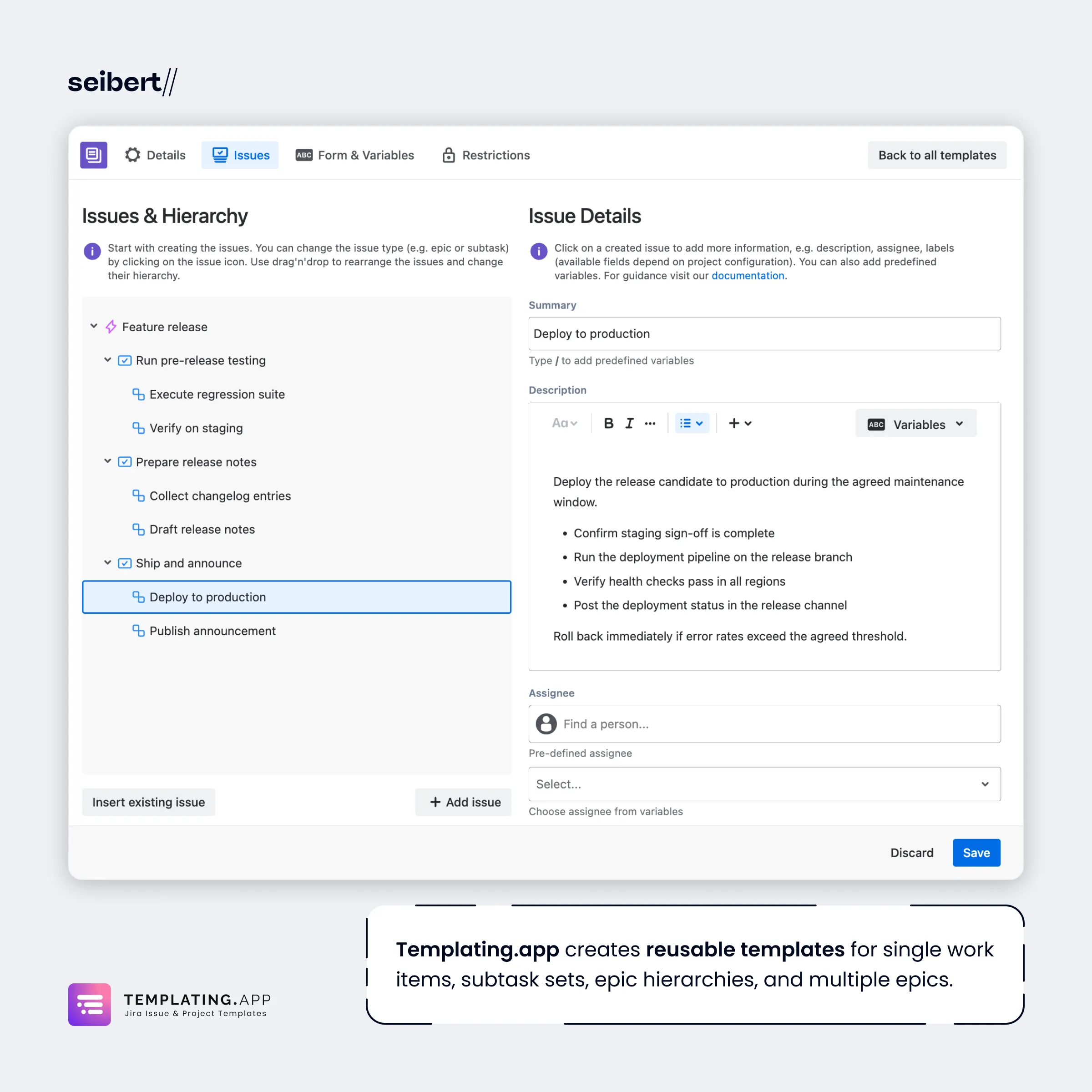
An easier and more flexible alternative would be a templating tool like Templating.app for Jira. This allows you to create reusable Jira templates for individual work items, sets of subtasks, complete epic hierarchies, and multiple epics. Instead of being buried in automation logic, these templates are tangible objects that can be browsed and selected from a list by users. This makes them easier to maintain as your library of recurring work grows.
Checklists in Jira

There’s no proper Jira checklist feature that lets you create reusable checklist templates and add them to your Jira work items.
It does have action items, which are just text lists with checkboxes, but these aren’t reusable. They’re created ad hoc and designed to be used once on a specific ticket.
You can use Jira automation to create Jira tickets with action items predefined in the work item description. This would simulate checklist template functionality sort-of. Technically the whole work item is the template, which is more machinery than necessary if you only want a checklist.
A dedicated Jira checklist app like Didit would be a simpler and more maintainable solution than Jira automation. You can build reusable Jira checklists that are trackable, reportable, and independent of your Jira work items. Users can add these checklists in the work item editor, or you can set a default checklist per work item type, which automatically adds the checklist on ticket creation.
Didit also offers recurring checklists. You can configure the app to automatically create checklists at regular intervals and email them to assignees. All you have to do is select your requirements from dropdowns. No need to resort to Jira automation here either.
Creating Confluence documents from Jira work items
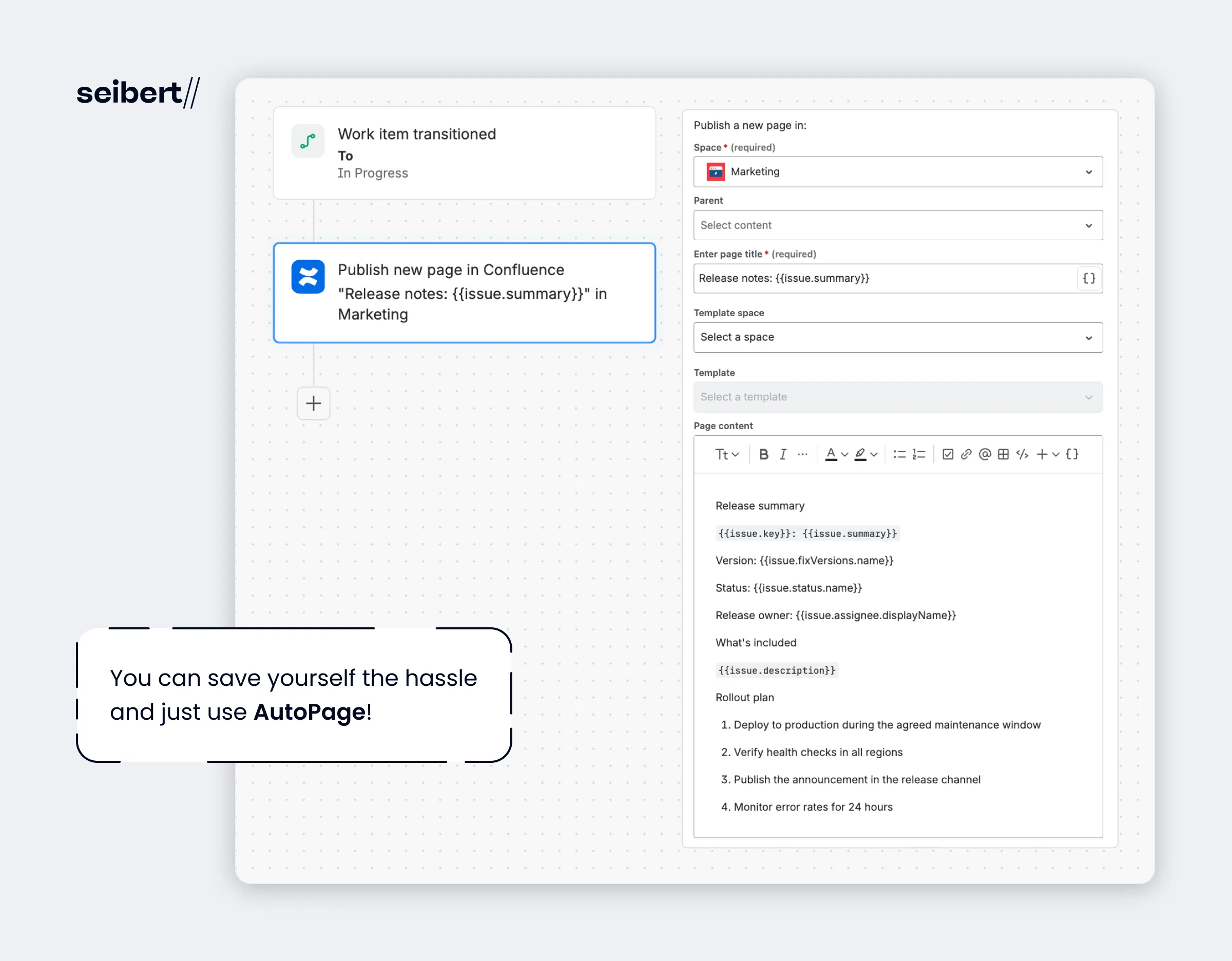
Sometimes you need to turn operational activity in Jira into formal documentation in Confluence. For example, a project document from a delivery work item, an incident postmortem from an incident ticket, or a lean business case from a portfolio epic.
You can use Jira automation to create Confluence pages and pull Jira data into them. But this involves heavy reliance on smart values and there’s no sync between Jira and the Confluence page once the page is created.
The main problem is that it’s hard to get the Confluence page to look the way you want it to. You have to build it in a page content window inside the automation rule, and you don’t get the full functionality of the Confluence page editor. To truly customize its look, you’d need to use the Confluence API and JSON.
The AutoPage app offers a more flexible approach to auto-generating Confluence pages from Jira tickets. Create a normal Confluence page as your template, with all its features at your disposal. Add AutoPage macros to prepopulate your page with Jira data, which are easier to use than smart values. Then tell the app which Jira events should trigger page creation, which work items to use, and where to publish the page.
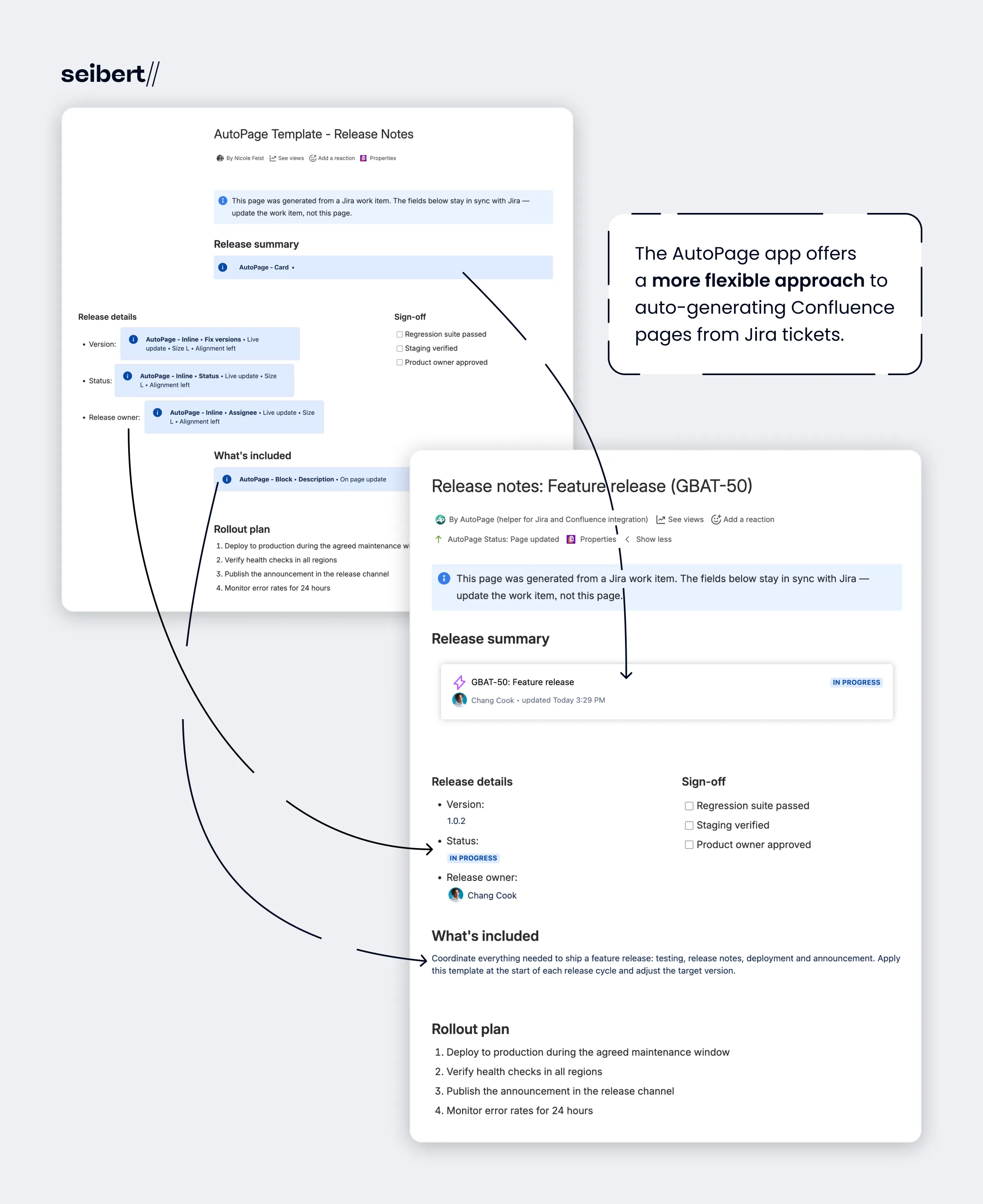
With AutoPage, changes made in Jira will automatically propagate to the AutoPage-generated Confluence document thanks to the live sync between the ticket and the page.
Another benefit of using apps in place of Jira automation workarounds
A general benefit of using a Marketplace app to do something otherwise only achievable with Jira automation is that you reduce the chance of hitting your monthly usage limits.
So you can use AutoPage to generate as many Confluence documents as you like. And you can use Templating.app to generate as many templated Jira work items as you like. These actions don’t count towards your Jira automation limits.
In other words, these add-ons enable you to use your automation allowance more efficiently.
Other forms of automation for Jira
Jira automation is a great tool when the logic you want to use is explainable in one sentence and the process you’re automating is mostly work item-based.
But it becomes risky when rules start calling other rules, logic is spread across many flows, you’re breaching your usage or service limits, or your debugging process requires opening five different audit logs.
If this is happening, it means that Jira automation isn’t covering everything you want it to.
If you need more capabilities than Jira automation will allow, then you may need your own UI within Jira. Alternatively you may need your own reusable Jira app. Our custom development team can design and build Forge apps for your Atlassian environment, as well as automation scripts that move, clean, and transform your data. Find out more about Seibert’s custom development solutions.
The upshot
These days we all expect a high degree of automation in our work management. If a repetitive action doesn’t require human thought or creativity, the machines should do it. Because they do it better and faster.
Jira automation is fantastic and versatile, but it can be like building your own car from parts, instead of buying one. A dedicated Atlassian Marketplace app is like a production vehicle: engineered, tested, and maintained by experts.
So if you need an automation, it’s worth considering if there’s an app for it. It could save you a ton of hassle.