
We all want ways of working faster in Jira. If our team is doing the same tasks over and over, we don’t want to write all our tickets from scratch every time. Plus, we’re likely to miss stuff. We’re only human.
It’s why we need Jira templates. Templates in Jira make it quicker to get started on work, streamline processes, and ensure consistency between recurring tasks and projects.
In this article, we’re going to look at how you can create:
-
Jira ticket templates, both for a whole issue and the issue create screen only
-
Templates for sets of Jira issues, from subtasks to complete epic hierarchies
-
Jira project templates
We’ll also look at the templating capabilities available out of the box, and what functionality you can add to your Jira with Atlassian Marketplace apps.
The benefits of templates in Jira
Jira templates are a way of automating tasks and processes in Jira and kickstarting workflows faster.
Let’s say you have a task that has to be done repeatedly in much the same way, e.g. onboarding a new employee or writing a monthly newsletter. Jira ticket templates can save you from having to fill out the fields with the same information each time.
For example, if your summary and description should have the same text, and/or your tickets should have the same assignee and priority, a Jira ticket template would have all these things predefined.
Then let’s say you have ancillary tasks associated with your main task. Taking the onboarding example, your ancillary tasks might include the following:
-
Sign contracts
-
Assign employee a Jira account
-
Order employee a company laptop
-
Prepare welcome pack
Jira epic or subtask templates that have all these tasks and others ready to go would save a huge amount of time and stop the HR team from missing anything.
Finally, let’s say you want to create a Jira project that has the same basic setup as another project. For example, the same project lead, issue types, workflows, permissions, and notifications. A Jira project template would have all these things predefined so that you can skip a whole load of configuration and get teams up and running faster.
In addition to saving time and reducing errors, another key benefit of Jira templates is task and project standardization. When you a create a task, a set of tasks, or a project based on a template, you’re making sure that all the necessary steps are followed each time. This maintains consistency in the delivery of work.
Now let’s look at how you can create Jira ticket templates for individual issues.
How to create Jira ticket templates
A Jira ticket template is great if you have a recurring task that you have to complete over and over. Ticket templates have predefined fields, for example, a default assignee and predefined text in the summary and description, so that you can create the issue quickly and get to work straight away.
But creating and using Jira ticket templates in native Jira isn’t as simple as you might think.
Are Jira ticket templates available out of the box?
Currently Jira does not have any built-in functionality that allows you to create a Jira ticket template.
There are, however, three workarounds.
The Jira ticket cloning workaround
The most basic workaround is creating a Jira issue and cloning it. This is easy to do but it’s limited in features and not particularly user-friendly. Plus, duplicating something isn’t the same as using a template, because you copy all the customizations along with it, i.e. all the field values of the first ticket. It would be the same as copying a filled-out form when all you want is the form. Cue a lot of manual deletion.
The Jira automation workaround
You can use Jira automation to predefine fields on Jira issues. For example, you could create an automation rule that adds a default description to particular issue types.
However, that default description won’t appear on the issue create screen when a person is creating the issue, which is where you’d want it. Either the default description would appear once the issue is created (the trigger for the rule being the creation of the issue), or you’d add a manual trigger. This means the user would have to create the ticket, then click a button to trigger the automation and add the default description. Since you want the user to see and edit the description, you’d likely choose the manual trigger option. But frankly, it’s all a bit awkward and unwieldy.
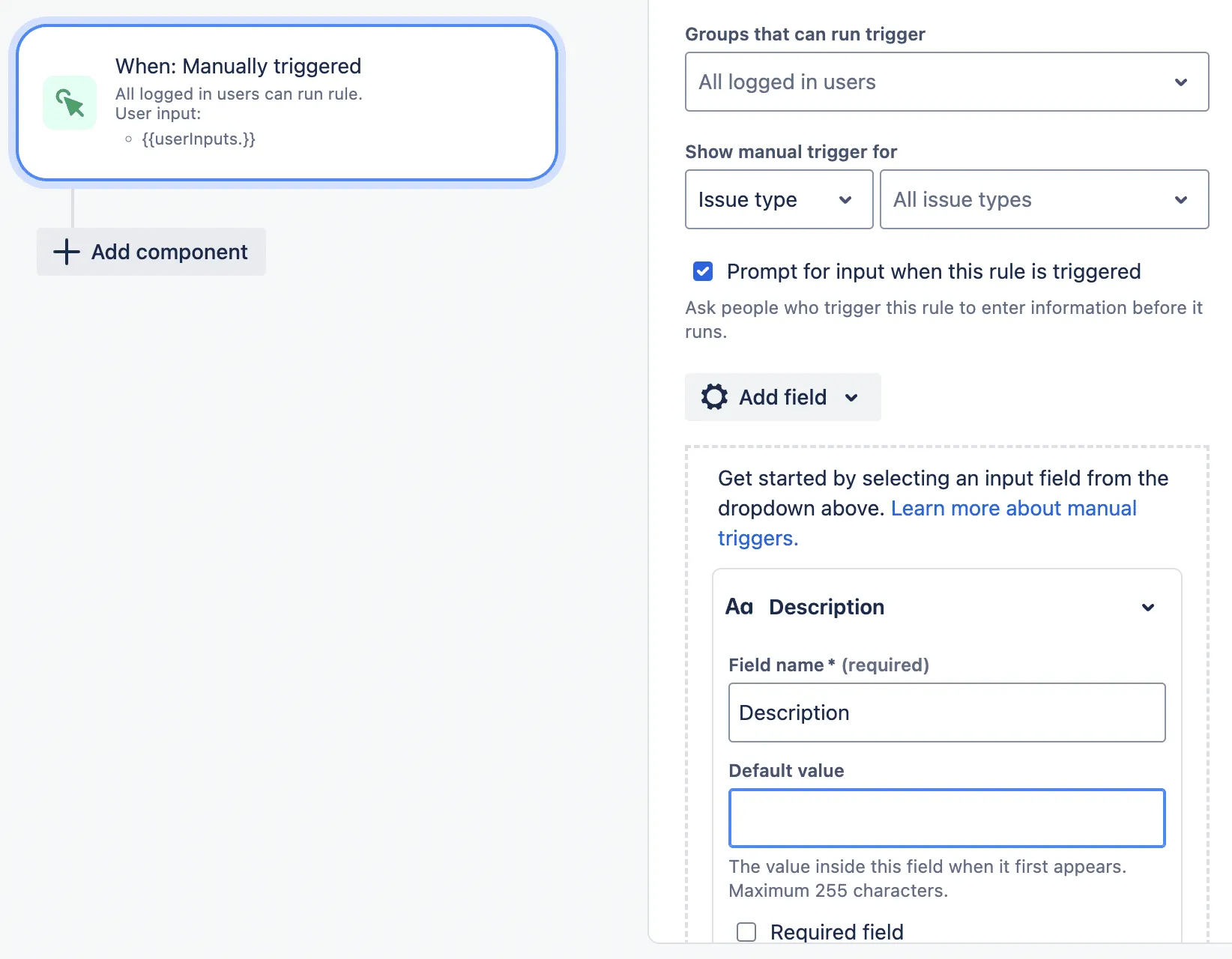
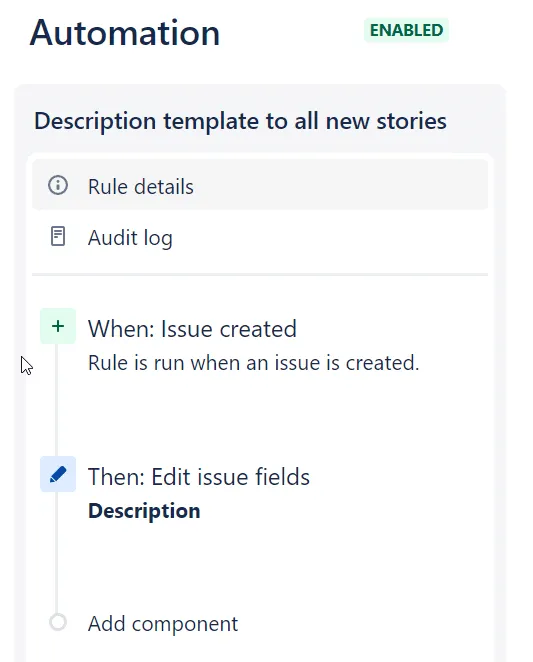
The other problem is that Jira automation is not for the faint-hearted. Automation rules are hard and time-consuming to configure and you need to know what you’re doing. Most average Jira users wouldn’t want to go near them. And most users can’t anyway, because only admins are allowed to dabble in Jira automation. (Probably for the best.)
The Jira custom fields workaround
The closest thing to creating a Jira ticket template that you can do out of the box is to create custom fields and add default values to them.
The problem is that, firstly, custom fields are very complicated to set up. Secondly, most users are looking to create templates using the system fields, such as the issue description, which can’t be changed or customized. This leads them to try and replace the system fields with custom fields. This is even more complicated, invariably fails, and can lead to all kinds of confusion in your instance, thereby making your Jira admin’s job a lot harder.
Jira task templates on the Atlassian Marketplace
Because Jira doesn’t offer ticket template functionality, and none of the workarounds are ideal, it’s time to look at adding this functionality to your Jira via an Atlassian Marketplace app.
Templating.app for Jira is one such app; it allows you to create a reusable template for a Jira issue with fields such as summary, description, assignee, and priority all predefined. If you want to create a new issue based on this template, you simply go into the app, select the template, change anything you need to change, and voila. You have an issue that’s ready to be worked on.
Templating.app also lets you create templates solely for the Jira issue create screen and guide users when they’re filling out a ticket. The app’s behaviors feature allows you to conditionally change how fields behave on a Jira ticket during the issue creation process. For example, you can change field names, add helper text, show/hide fields, and set default field values, e.g. a default description. And you can customize these behaviors for different issue types, job roles, components, priorities, and other field inputs.
How to create templates for sets of Jira issues
Most users looking for Jira templates for tickets probably don’t want templates for a single issue. They likely want a template for a whole hierarchy of issues, from epic to subtask. In other words, you want to be able to hit a button and generate all the issues in one go.
There are two types of templates that are relevant here:
-
A Jira epic template when you have to complete the same big buckets of work over and over. This would have the epic and child issues, potentially with their own subtasks, predefined and ready to go.
-
A Jira subtask template when you want to add a set of subtasks to multiple tasks or stories because these subtasks need doing for every one.
So let’s look at ways of building templates to automate the creation of a set of Jira issues.
Are Jira templates for sets of tasks available out of the box?
Jira does not have any built-in functionality that lets you automate the creation of a set of tasks using an epic or subtask template.
However, you can clone a set of subtasks or automatically create a set of tasks using automation rules. Let’s explore these first.
Cloning Jira subtasks (but not epics)
When you clone a Jira ticket, you can choose whether to clone its subtasks along with it. This isn’t a proper template nor is it a very user-friendly workaround. You’d clone all the customizations and have to edit each subtask post-creation. And you’d have to keep cloning and editing if you want to use the same sequence of subtasks regularly.
You’d think this feature would apply to epics. However, all you can do is clone the epic issue. You can’t clone its child issues. And what is an epic without its child issues?
The Jira automation workaround
Jira admins can configure automation rules that trigger the creation of tasks/stories under an epic, or the creation of subtasks under a task/story. Both the parent and child issues can have predefined fields, however, your options for adding variables are limited. For example, you may want to add dates or users when creating a set of issues for onboarding, in order to individualize the issues and be able to filter by this information. However, Jira automation won’t help you here. Instead you’d have to edit the issues one by one post-creation.
This limitation is compounded by the fact that Jira automation rules, as mentioned earlier, are hard to configure. You can see evidence of this on the Atlassian Community; users tie themselves in error-filled knots when messing about with Jira automation. So often their attempts go wrong and break something.
Jira automation might be okay for one or two use cases, but if you have a bigger need for Jira templates and lots of users eager to work with them, it’s not a suitable alternative.
Jira epic and subtask templates on the Atlassian Marketplace
If you have lots of Jira recurring tasks across a range of use cases, you need templates. Epic and subtask templates are a much easier, faster, and more flexible way of automating tasks in Jira than cloning issues or creating automation rules.
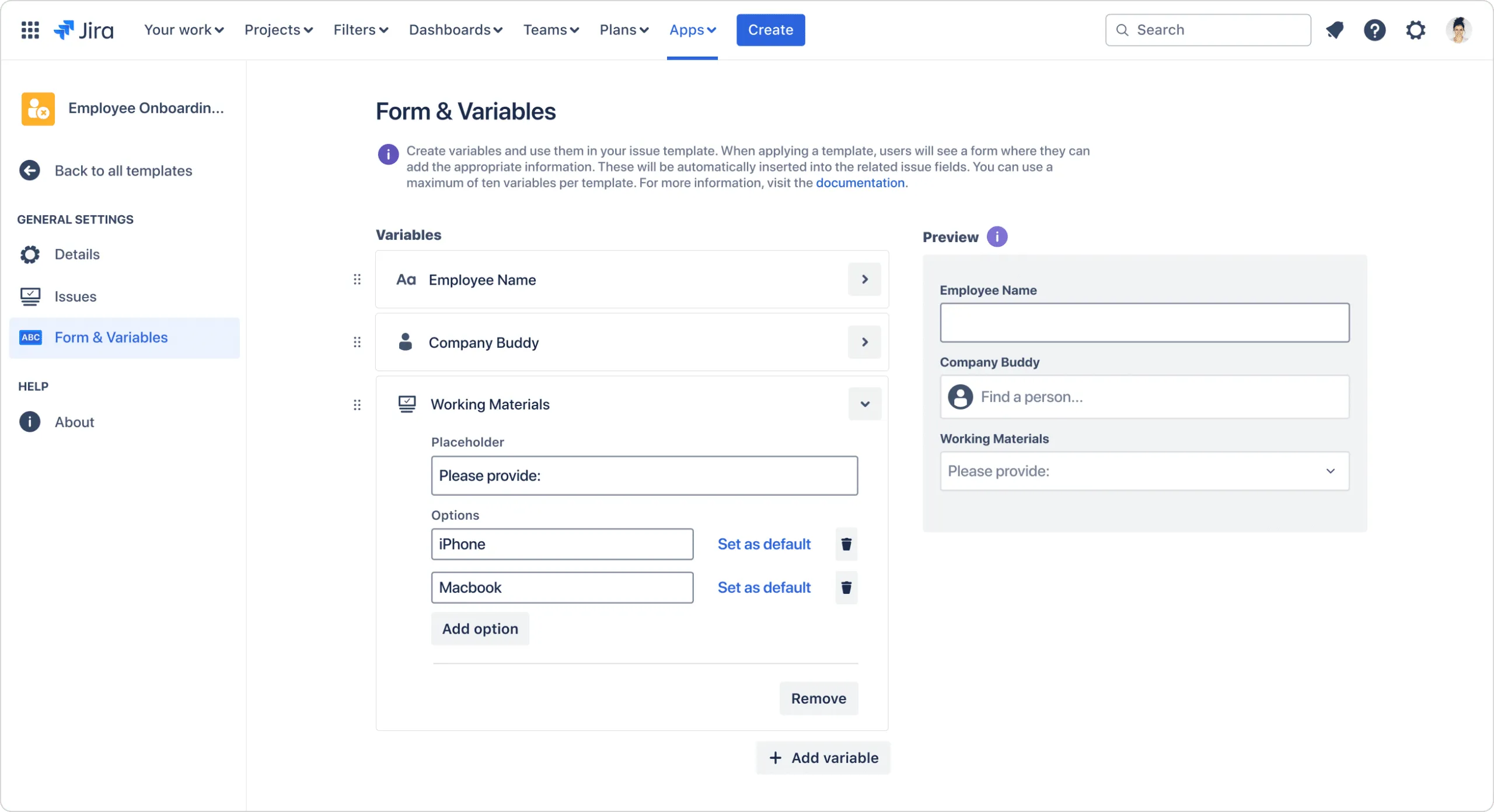
Marketplace apps like Templating.app enable you to make templates for complete Jira issue hierarchies. Your template could be for an epic, where the epic and all the tasks under it are predefined. Then, when you need a new set of issues based on the template, simply go into the app, select the template, customize it, and click “Create”.
Alternatively, you may have a unique issue that requires the completion of the same set of subtasks as another. With Templating.app you can build subtask templates as well. Then, while you’re creating or editing the new issue, simply choose from the list of templates, customize the subtasks if needed, and you’re good to go.
An important difference to the Jira automation workaround is that these templates allow you to insert a wider range of variables, such as a user, date or any other custom field, each time you generate a set of tasks. This saves you from having to customize issues individually and improves your ability to filter tickets.
How to create Jira project templates
Another Jira template you might be looking for is one for a whole project. If you want to create a Jira project that has a similar setup to another, a template would save a lot of time. You’d be able to skip a bunch of repetitive setup and configuration tasks and dive straight in. Project templates also ensure consistency and quality and facilitate the standardization of frameworks and best practices, which is particularly useful in big organizations.
Now let’s look at the options for creating Jira project templates.
Are Jira templates for projects available out of the box?
This may come as a surprise considering the lack of templates for issues, but yes! Jira does come with templates for projects. In fact, you’ll find dozens of templates for different kinds of Jira projects, e.g. software development, marketing, sales, finance, HR, and general project management.
These templates are detailed and serve a multitude of use cases. If, for example, you’re looking for a Jira project management template for tracking tasks, roadmapping, bug reporting, or managing your backlog, you’re in luck. Jira has templates for all these functions and more.
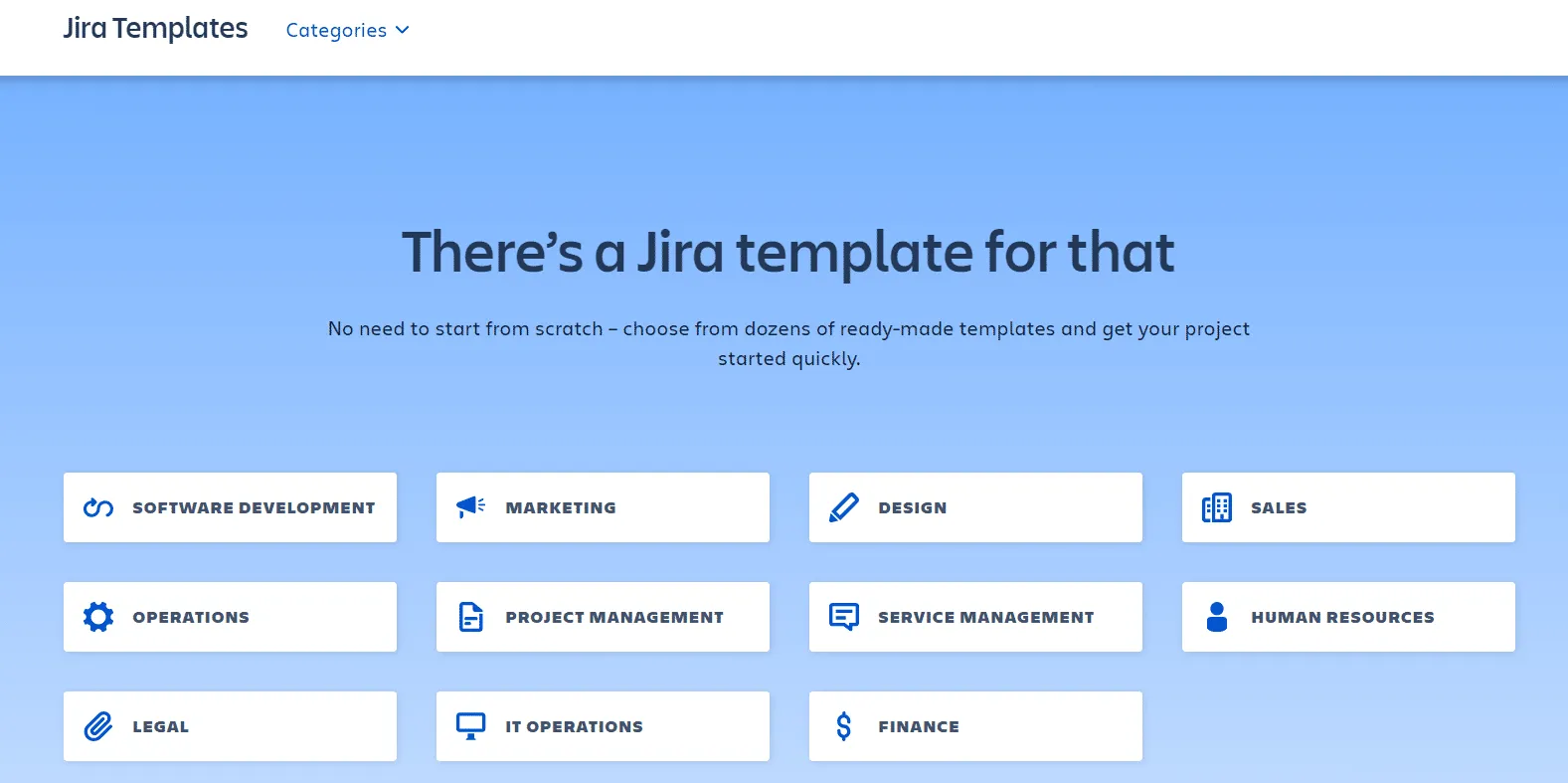
However, all these templates have preconfigured project schemes. In other words, the project configurations for issue types, issue fields, issue security, issue type screens, notifications, permissions, and workflows are all predefined and cannot be customized to better suit your purposes. For example, if you want to change what issue types can be created in a sales or HR template, you can’t. You’re stuck with the issue types you’re given.
What this means is that Jira’s native project templates are useful if you’re happy to work a certain way, i.e. the way the template tells you to.
You’ll also find that some schemes will hinder the performance of your add-ons and might make administering your Jira instance unnecessarily complex, particularly as the number of projects grows.
Can you make your own project templates in Jira?
You can, but it’s hard to understand, hard to get right, and there are limitations.
What you have to do is create a project, select another project to use as a template, and get Jira to share the configuration of the other project with your new one.
However, once you’ve selected the project you want to use as a template, you can’t customize any of the configurations. For example, if you want to use different issue security schemes because you’re working with an external partner, and you’d like the partner to be able to access some issues but not others, you cannot specify this at the project creation stage.
What’s worse, if a user doesn’t tick the “share configuration” box – which happens often – Jira will add duplicate configuration items (workflows, screens, schemes etc.) to your instance every time a new project gets created. This will cause your Jira instance to become unnecessarily cluttered and your Jira admin will either have to clean up the mess, or lose control altogether.
Jira project templates on the Atlassian Marketplace
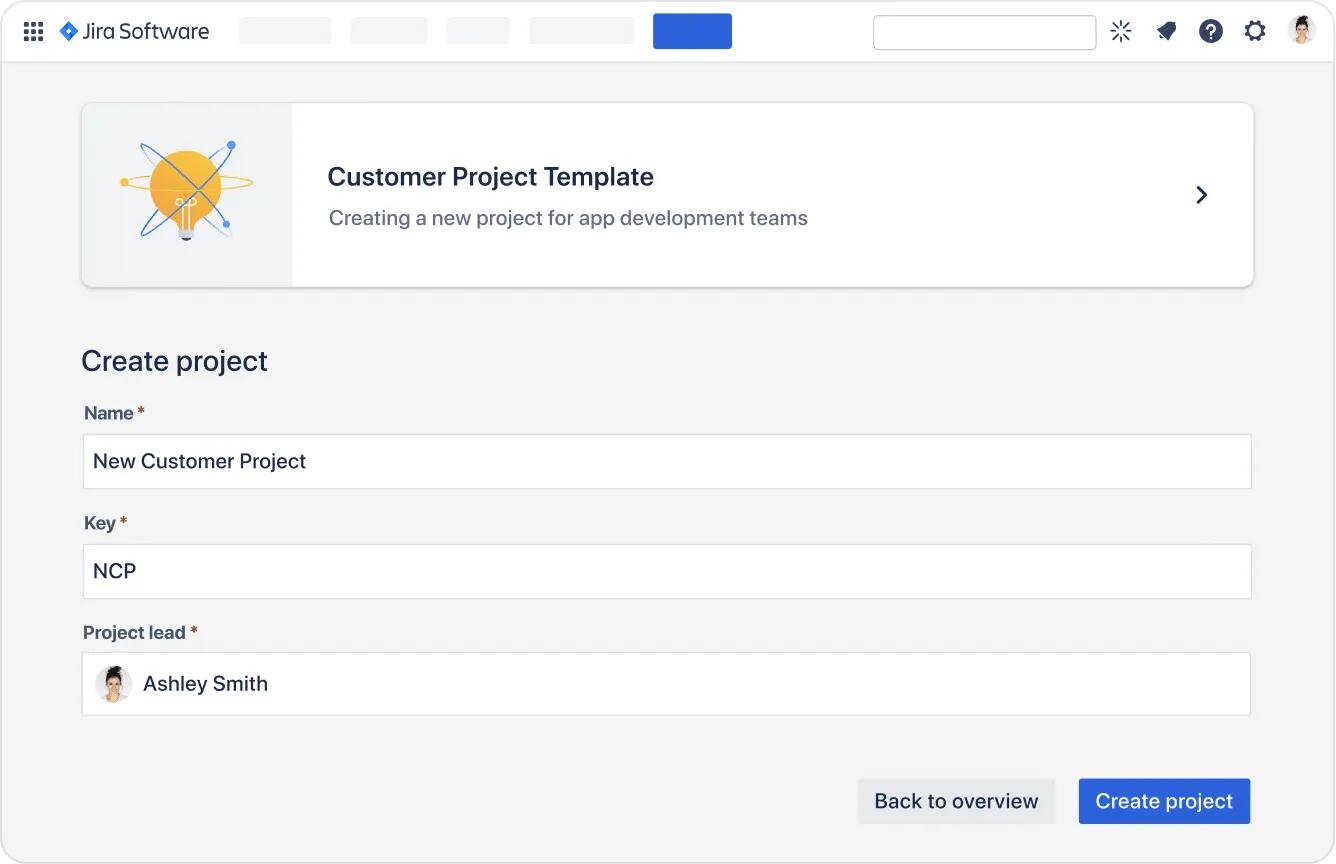
A Marketplace app like Templating.app can fill in the gaps left by Jira’s native project templates. Templating.app allows you to build reusable Jira project templates that can be customized at the project creation stage and carry no risk of cluttering up instances with duplicate configuration items. It also has a cleaner user interface than the much messier native feature.
Importantly, you can give normal users the ability to create projects. Out of the box, you can’t create a project if you don’t have admin rights. Templating.app allows you to circumvent this and give specific users or sets of users the right to create projects based on your templates.
Use case examples for automating tasks and projects in Jira with templates
User stories
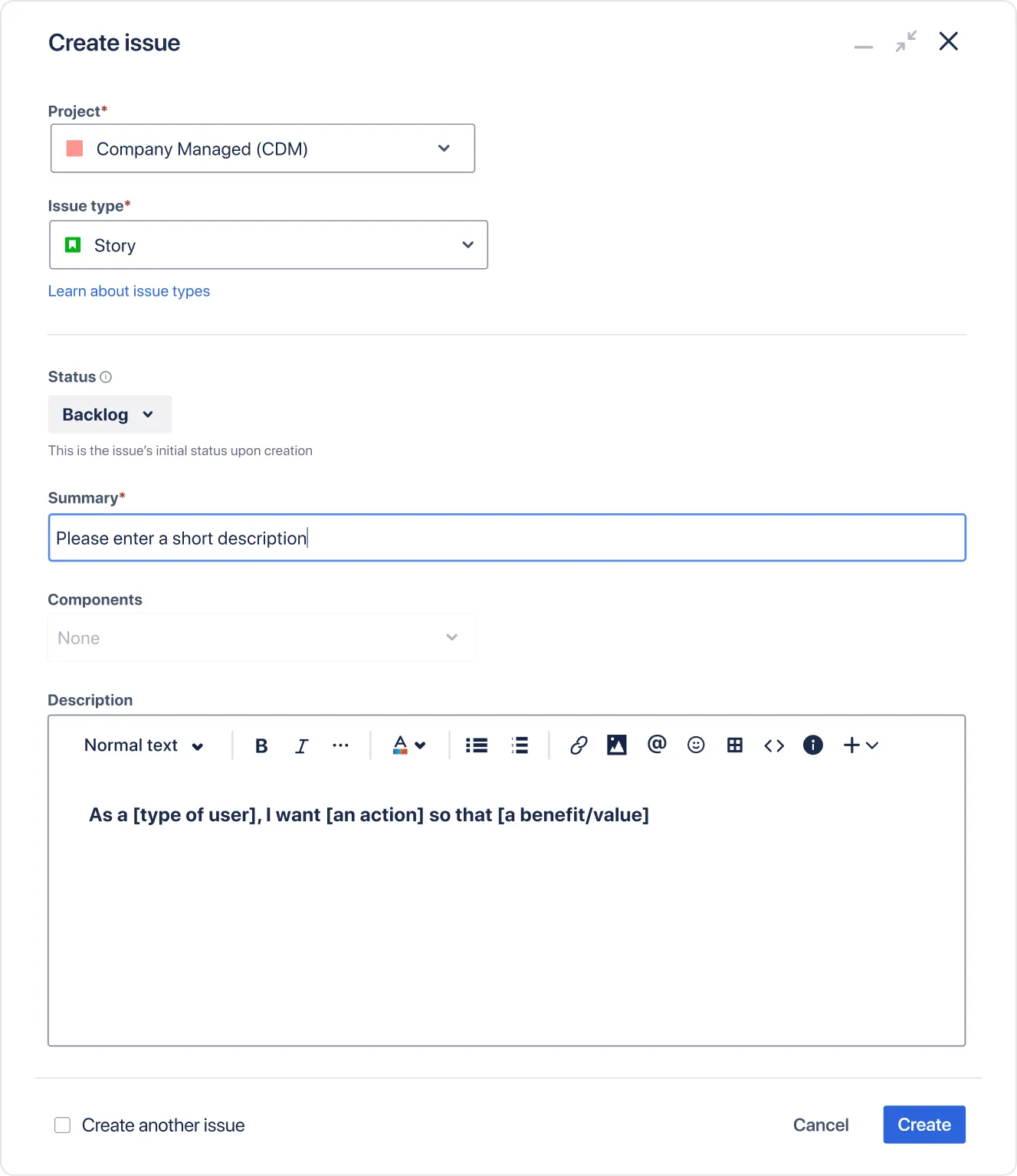
A Jira user story template could either be a full Jira ticket template, or a template for the issue create screen only. A user story template for the issue create screen could have a default description with the text: “As a [type of user], I want [an action] so that [a benefit/value]”, which is the basic template for all user stories.
You could then have default text to remind the person creating the issue to add acceptance criteria, so that the software team know exactly what they need to do to meet the end user’s expectations. You could also include a default value for the assignee if you want all user stories to be assigned to a specific person.
Bug reporting
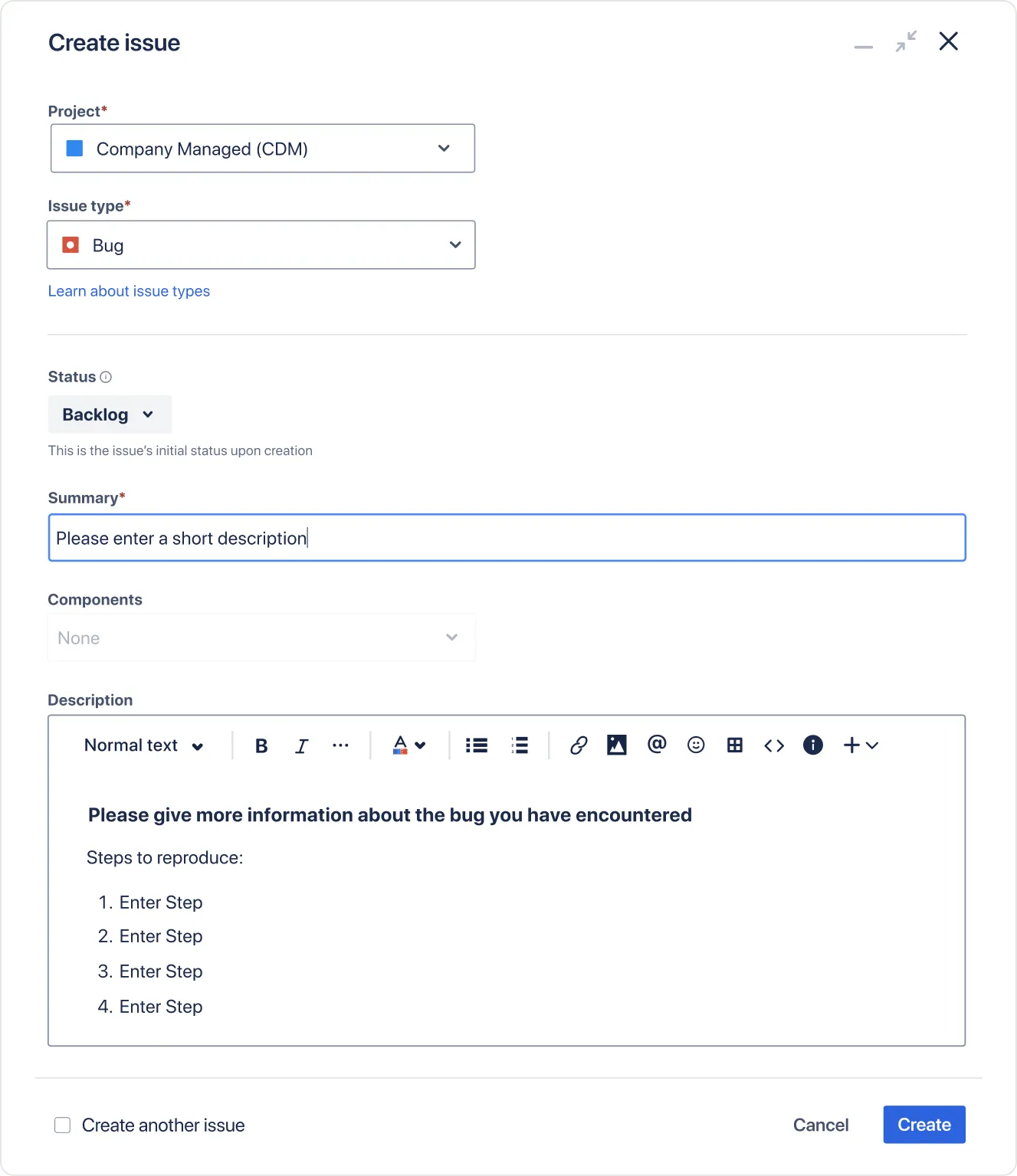
You want to make sure an end user who reports a bug in their software provides all the information necessary for the IT team to fix it. Otherwise the team have to waste time asking questions. A Jira issue create screen template would be useful here. You could add a default description to the bug issue type that guides the user to provide detailed information, such as the steps the IT team need to reproduce the bug.
Blog articles
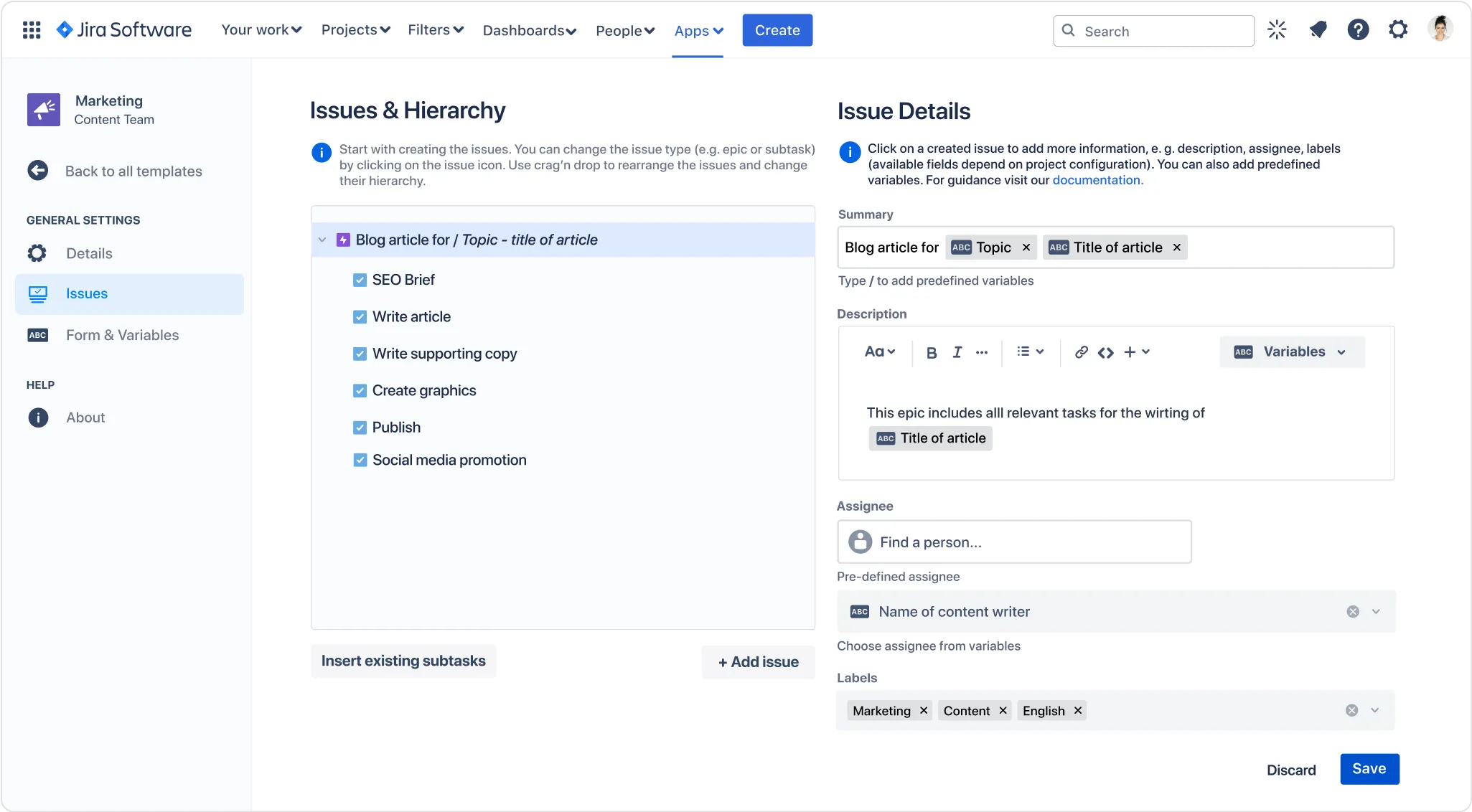
When a marketing team puts out a blog, it often involves a bunch of different people doing the same tasks over and over. In addition to actually writing the article, other tasks may include providing an SEO brief on what keywords to use, providing imagery, publishing the article, and publishing social posts to promote it.
For this, a subtask template would be helpful. Then, when you create a task for a new blog, you’d be able to add a set of predefined subtasks for providing imagery and publishing right there in the ticket.
Employee onboarding
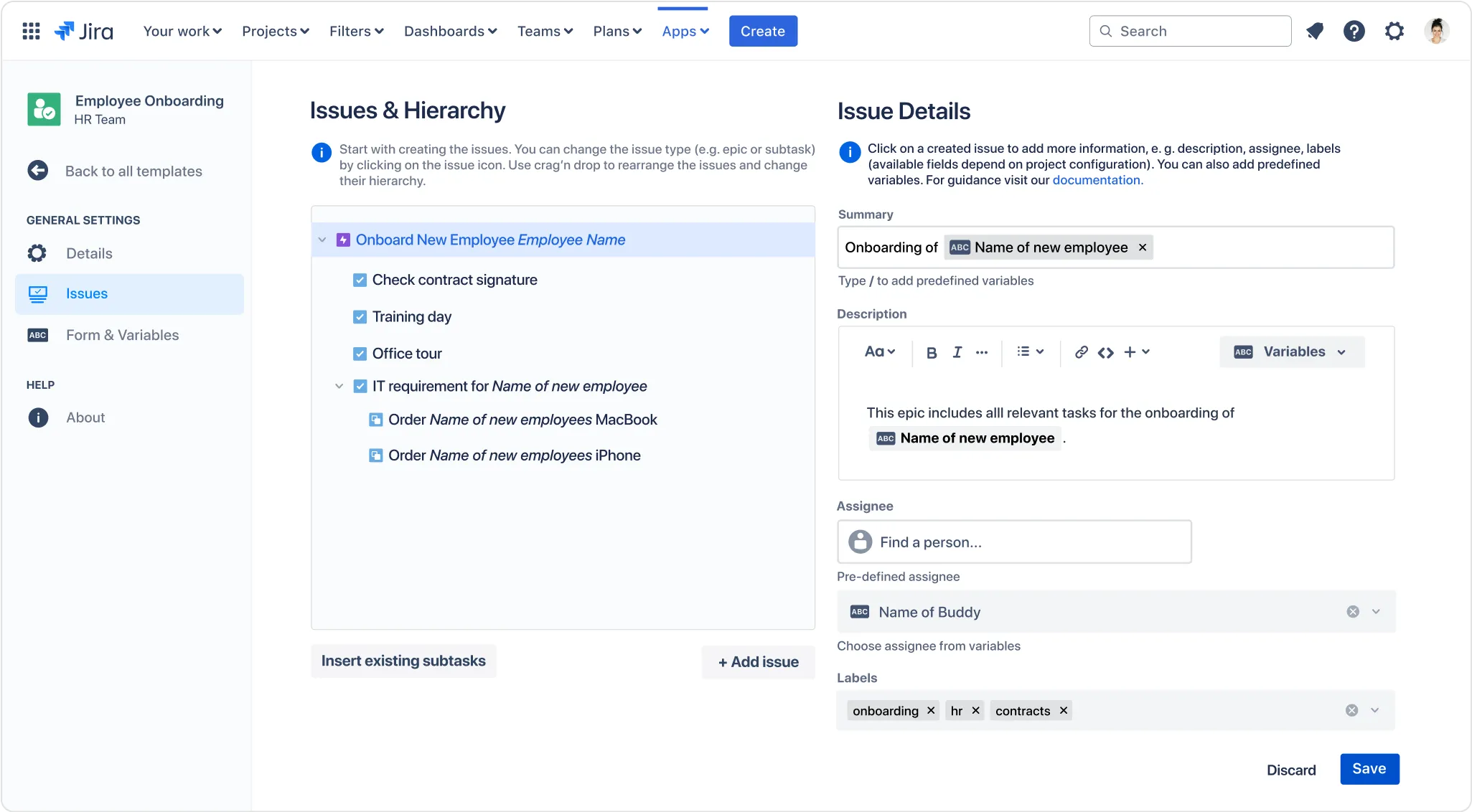
As mentioned earlier, there are lots of tasks and duties involved in onboarding a new employee. You may want to create a task for the new employee, and then create subtasks within the ticket using a subtask template.
However, onboarding activities sometimes have a large scope and involve multiple teams. Therefore you might want to create an epic for the employee and have a set of tasks under it, with subtasks under those. And you could have a Jira epic template that looks something like this:
Customer projects
If you have Jira projects dedicated to different customers, then they probably have the same project type, lead, and schemes, and you’re likely to be creating them regularly. A Jira project template would save you from having to repeat the same configuration steps every time you add a new customer to your instance.
Multi-project management
If you need to create and manage multiple projects that have the same configuration and require the same issues, both project and issue templates would be useful. It means you can create a new project without all the configuration steps, and add a set of predefined issues to it without having to create them all individually. This saves time and ensures consistency between projects.
You can also use a Jira automation rule to turn these two steps into one. For example, with Templating.app, you can make a rule that automatically applies a specific issue template to a project when you create the project. This makes project creation even faster for your users.
To summarize (TL;DR)
-
Templates make it quicker and easier to work on recurring tasks and projects in Jira. They are a way of automating the creation of projects, issues, and sets of issues.
-
Jira recurring tasks for which full Jira issue templates and/or issue create screen templates would be useful include user stories, employee onboarding, and bug reporting.
-
Jira project templates make it easier to create and manage multiple projects that have the same configuration and keep their configuration synchronized.
-
Jira doesn’t offer any functionality for creating full ticket templates, issue create screen templates, or templates for sets of issues. There are workarounds, but they’re complicated and have limitations. For example, you can’t add variables like dates and users when you automate the creation of subtasks using Jira automation. For that you’d need a dedicated Jira templating app.
-
Jira does offer project templates but your options are predefined templates for specific use cases that you can’t customize, or the shared configuration feature that is hard to understand and even harder to get right.
-
You can build and use Jira ticket templates (including issue create screen templates), epic and subtask templates, and project templates with Templating.app for Jira.
-
Templating.app works with Jira automation, which means you can automatically apply an issue template to a project when that project gets created, and your people can start working right away.
-
In native Jira, you can’t create a project without admin rights, but with Templating.app, users can be given the right to create projects based on your Jira project templates.
If you want to work faster in Jira by automating the creation of recurring tasks and projects with Jira ticket and project templates, book a personal demo of Templating.app or try the app for free on the Atlassian Marketplace.