Visually distinguish feature requests for better prioritization
Product managers receive feature requests from many sources: customers, internal teams, and user testing. Labels should make it easy to tell these requests apart at a glance. Jira’s native labels don’t really do that.
For a long time, Jira labels were gray only. In 2025, Atlassian started rolling out colored labels, but Jira picks the color for each label itself. You can’t change it. On top of that, Jira now renders labels as a thin outline on a transparent background, so even colored labels barely stand out. And because anyone can create a new label right in the work item, you quickly end up with duplicates like “Customer Feedback”, “Customer-Feedback”, and “Customer Feedbak”.
The result is that teams still have to open and read each request to understand where it came from. That wastes time and adds to decision fatigue when you prioritize.
Choose your own label colors
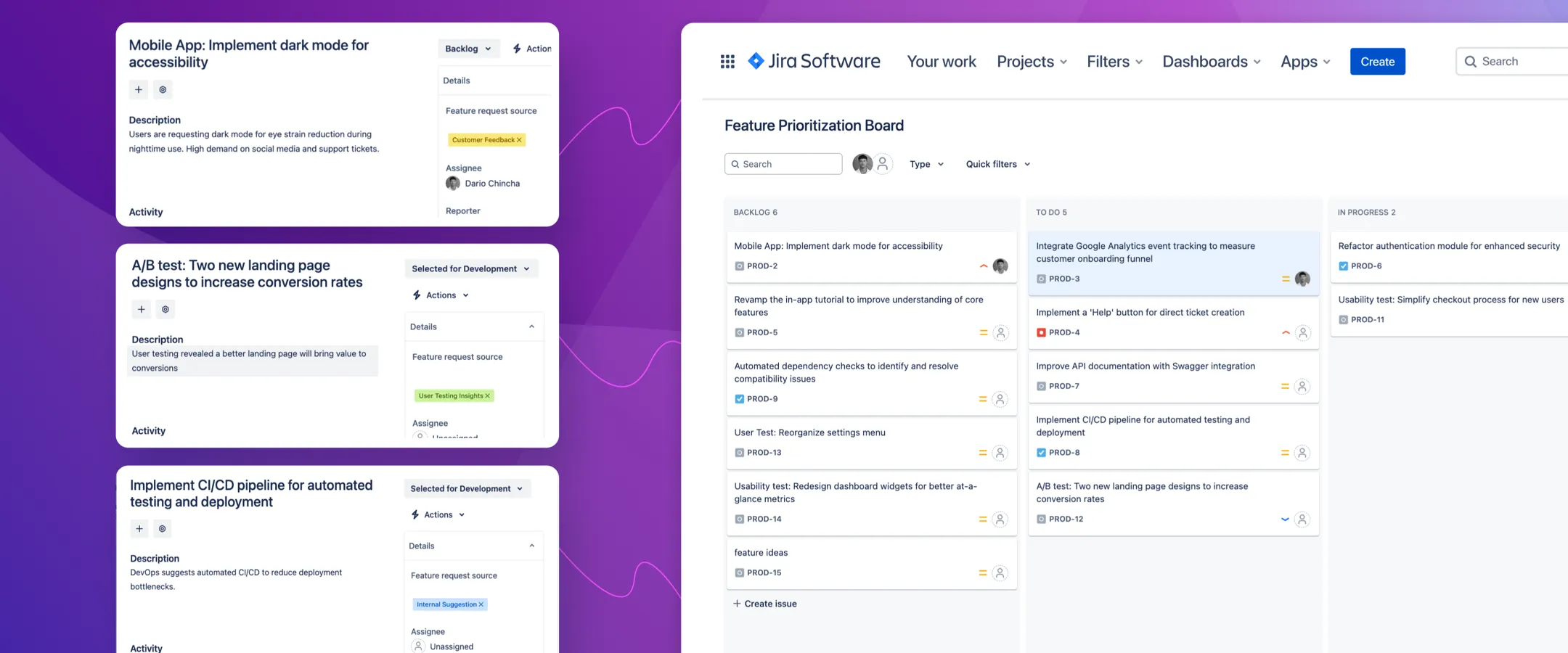
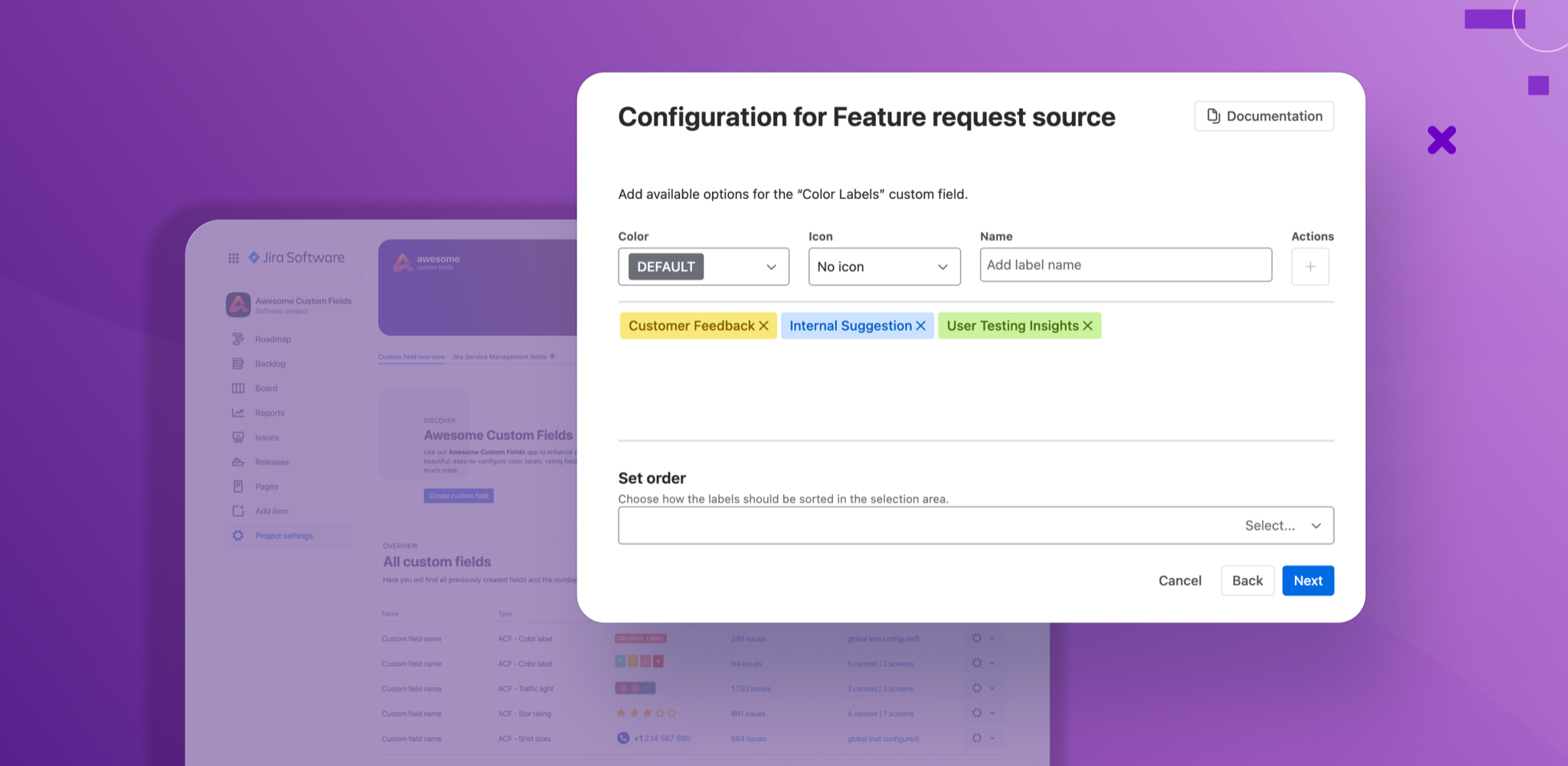
With the color labels field in Awesome Custom Fields, you decide which color each label gets. For example:
- Yellow for “Customer Feedback”
- Blue for “Internal Suggestion”
- Green for “User Testing Insights”
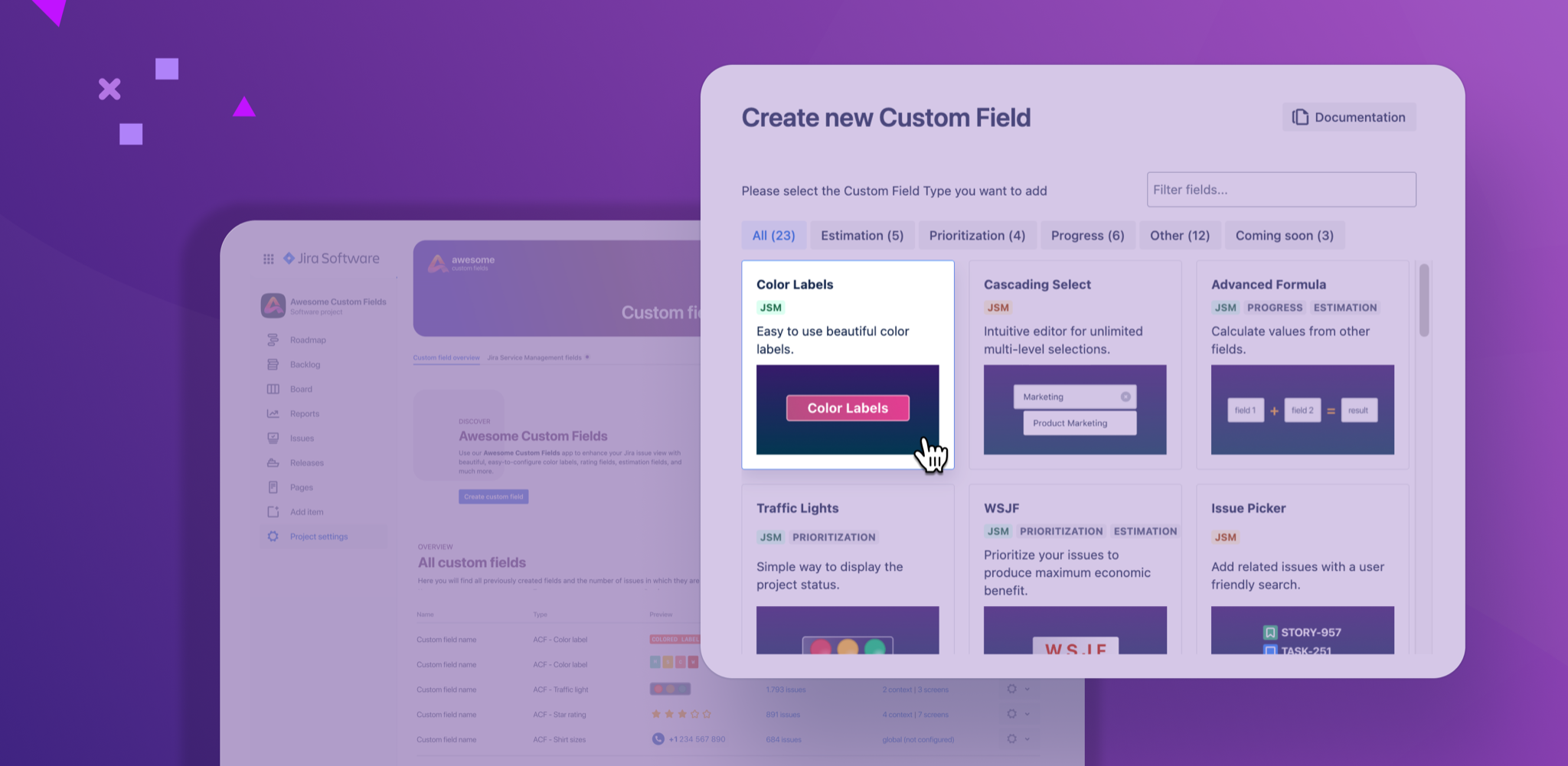
You can also add an icon to each label, such as a star, flag, or lightbulb. And you can set the order in which labels appear in the dropdown, so the most common sources are always at the top.
Use display styles to show what matters most
Each label can use one of three display styles:
- Filled: a bold, solid background for labels that need attention right away.
- Light: a softer tinted background with colored text. It’s easy to spot but doesn’t compete with status, priority, or SLA indicators.
- Outline: a transparent background with a colored border and text, for labels you mainly use for filtering and reporting.
For example, you could give “Customer Feedback” a filled style so it stands out during backlog refinement, and use the outline style for “Internal Suggestion”. Instead of scanning long lists of look-alike labels, your team sees the source and weight of each request at a glance. That makes it easier to categorize, discuss, and prioritize requests in team meetings.
Keep your labels clean and consistent
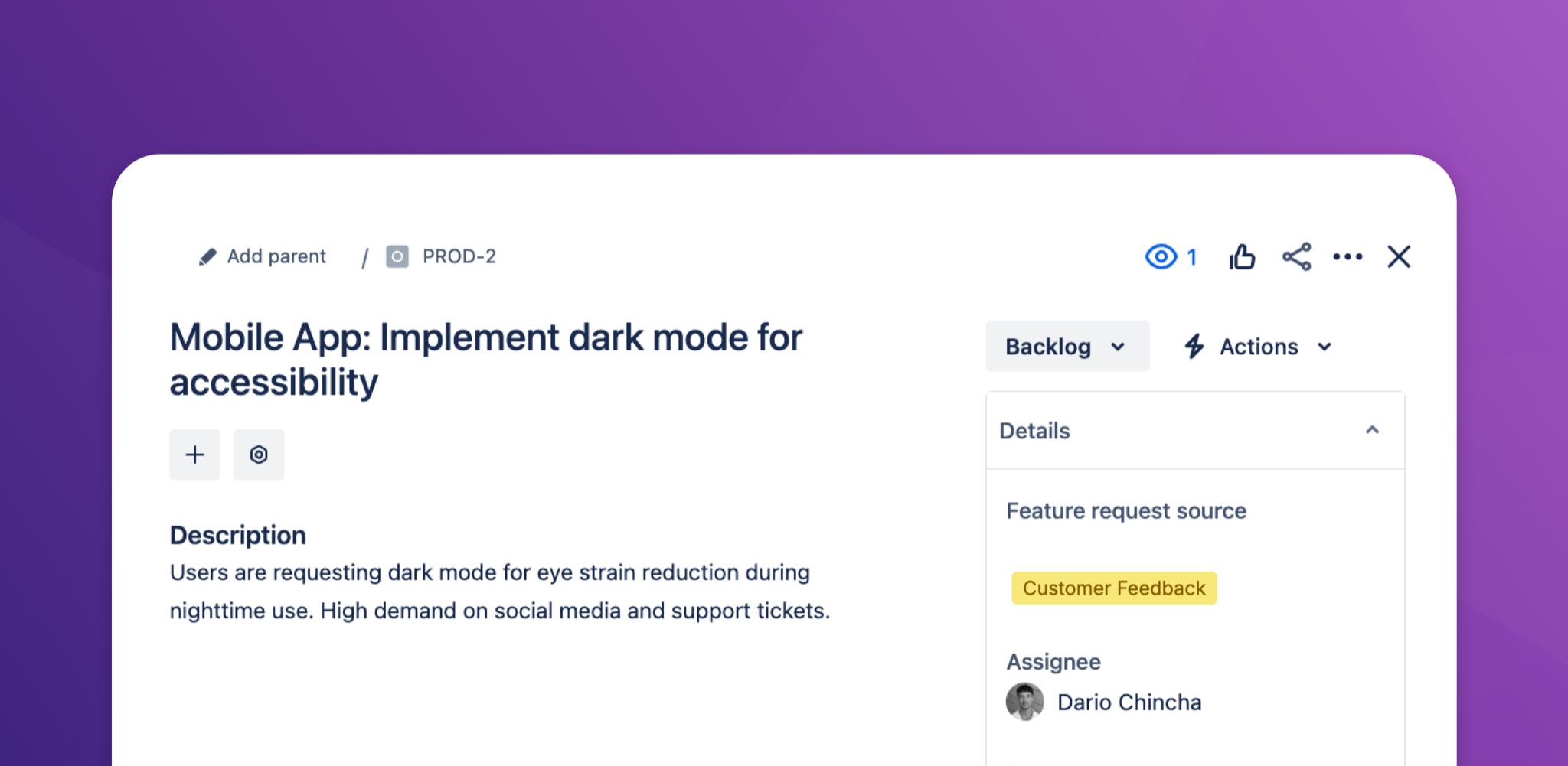
Native Jira labels are a free-for-all. With Awesome Custom Fields, admins define the available labels centrally. Users can’t add new ones ad hoc in the work item. They simply pick from a dropdown of predefined labels. This prevents duplicates and typos and keeps your boards organized and easy to filter.
Color labels for Jira Service Management
Color labels also work in Jira Service Management with the free Awesome Custom Fields extension for JSM. Customers can see and use the field directly in the JSM portal, so they can pick a predefined label when they submit a feature request. Agents then understand the context of a request before they even open it.
Want to dig deeper? Read our article on how to use vibrant Jira label colors to better differentiate your tasks.