
Summary
- One of the reasons teams struggle with incident postmortems in Jira and Confluence is that they don’t bridge the gap between the two tools. Instead of integrating them, teams end up manually copying information from Jira into their postmortem templates in Confluence.
- There are various ways of unifying Jira and Confluence to generate incident postmortem documents more quickly and efficiently, by automating the flow of incident data into a Confluence page.
- The three native options are:
- exporting to Confluence from the post-incident review work item
- using Jira automation to create Confluence pages with Jira data
- generating content with Atlassian Rovo
- All the native options have limitations, such as template creation constraints, extensive manual cleanup, and no ongoing sync between tickets and pages.
- AutoPage for Jira and Confluence fully automates the creation of postmortem pages with prepopulated data. It uses special macros to pull Jira data directly into Confluence but allows you to control what happens to it, by creating your own template.
Why incident postmortem documentation feels like a chore
An incident postmortem is supposed to be a learning exercise. Too often it becomes a documentation exercise instead.
For IT and engineering teams using Jira and Confluence, it’s because the information is in two places. Jira has all the factual information while Confluence is where the analysis happens.
When it’s time to create the postmortem document, teams are typically presented with a blank Confluence template and asked to manually gather, organize, and copy the information from Jira into the appropriate sections.
This is tedious. And it consumes time that could be spent on learning. As a result, postmortems become a compliance artifact, a box-ticking exercise. A chore.
The good thing is that a lot of the fact-gathering is well-suited to automation. By automatically populating your incident postmortem template with essential incident data and context, teams can spend less time documenting facts and more time understanding what those facts mean.
So let’s explore ways of closing the gap between Jira and Confluence, enabling Jira incident data to flow automatically into your Confluence postmortems.
What is an incident postmortem, and what should it contain?
An incident postmortem, also known as a post-incident review, is a structured examination of a disruptive event, e.g. an outage or security breach, designed to help you learn why it happened.
They are usually documented using a standard template to consistently capture key information, examine root causes, and establish a series of follow-up tasks intended to prevent similar incidents from occurring again.
A good incident postmortem document should contain the following:
- Key incident details: core information such as the reporter, assignee, priority, impact and urgency ratings, resolution date, and fix version
- A timeline of events: everything that happened, in chronological order, with timestamps
- Impact assessment: how many users were affected, for how long, and at what cost
- Root cause analysis: an examination of why the incident happened, using a method like the “5 whys”.
- Contributing factors: the systemic conditions that allowed the failure to occur, e.g. a prior change that introduced a bug, or a team process that wasn’t followed.
- Lessons learned: what went well, what didn’t go well, and what parts of the incident management process could be improved
- Follow-up tasks: a list of work items created to prevent the incident from happening again
Which parts of an incident postmortem document should be automated?
Once you have your template set up in Confluence, you want to avoid the manual labour of copying Jira data into it and automate as much as you can.
But you don’t want to automate everything. Because a postmortem isn’t just documentation. It’s a mechanism for organizational learning. If you end up automating the whole thing, then it’s the computers doing the learning, not the humans. At that point, the postmortem’s true value is gone.
What should be automated is the factual information. The what of the incident. So the incident metadata, the timeline, the impact assessment. Anything that requires data, not judgment. If you automate the flow of facts from Jira to Confluence, you free up time for the postmortem owner to start analyzing them.
Which parts of an incident postmortem document should not be automated?
The most important parts of your incident postmortem should not be automated. So:
- assessing contributing factors
- the root cause analysis
- describing lessons learned, and
- decisions about remediation tasks
These are the why of the incident. They require human reflection and understanding to enable teams to learn from what happened. If a computer does it, no one learns anything, and you’ll end up with postmortems that sound good but feel wrong.
So, automate the top half of the postmortem. Leave the bottom half to the humans.
4 ways of automating the flow of incident data from Jira to Confluence
Now let’s look at ways of bringing Jira and Confluence closer together through automation, so that you’re reducing the amount of manual work involved in creating incident postmortems.
1. The built-in “export to Confluence” of a PIR ticket
Post-incident reviews (PIRs) are a work item type in Jira Service Management, although they’re only available in premium or enterprise plans.
Using this method, you create a work item for your incident postmortem and document your analysis in the ticket itself, using the template in the description field.
When you’re done, you can export the ticket to Confluence (as well as PDF, Word, or XML). The Confluence export automatically pulls the data from the PIR ticket and prepopulates the Confluence page inside a template.
There are a few problems with this.
The main one is that the postmortem itself happens in a Jira ticket. Jira isn’t optimized for creating documentation; it’s a ticketing tool. Confluence is much more conducive to long-form writing and knowledge sharing. It has page hierarchies, version history, inline comments, the ability to embed Draw.io diagrams, observability dashboards, content from other pages, etc. Also, it’s just easier and more practical to write on an actual page than inside the description window of a ticket.
Another problem is that you can’t change the templates. So, you can’t change the default description template in the PIR work item type, and you can’t change the Confluence template used for the export either. This makes it difficult to standardize postmortems around your own processes and forces you to manually rework the document after export.
The export is also a one-time sync. Once the Confluence document is created, changes made later in the PIR ticket don’t automatically propagate to the Confluence page. This creates duplication and can lead to version drift, where the work item and the published postmortem gradually diverge.
Finally, because it’s an export, only the content population is automated, the document itself still has to be created manually. In other words, someone still needs to hit the “Export” button, which also means remembering to choose the correct Confluence space to export to. An easy thing to forget if you’ve got a lot of spaces.
2. Creating a postmortem in Confluence using Jira automation
Jira automation allows you to fully automate the creation of an incident postmortem document in Confluence and pull Jira data into it.
When you build the rule, you can build a Confluence page in a Page content window, which effectively becomes the template for your postmortem document.
What you can’t do is create a Confluence page the normal way, and tell the automation rule to use it as the template.
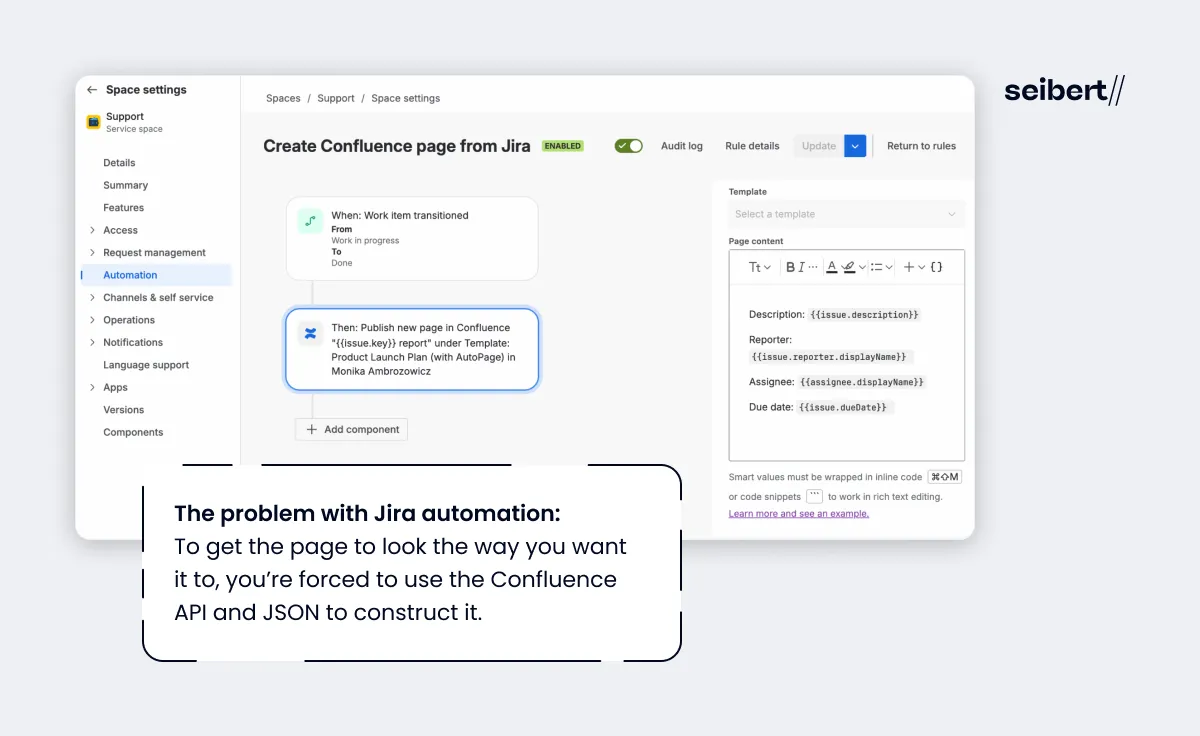
The real problem with this is that the page content window in the rule doesn’t offer the full functionality of the Confluence page editor in terms of macros and formatting. To get the page to look the way you want it to, you’re forced to use the Confluence API and JSON to construct it. This is complex and time-consuming.
Not to mention that creating and managing native automation rules is hard enough as it is. You also typically need admin rights, along with a good understanding of smart values and how to use them.
Finally, like the export option, the page creation is a one-time sync. If the work item gets updated, the page won’t.
3. Using Atlassian’s AI to draft Confluence postmortems
You can get Atlassian’s AI, Rovo, to draft a Confluence postmortem, using information from Jira to create an incident summary, timeline, and preliminary analysis. You can also combine it with automation to generate a postmortem document as soon as an incident gets resolved.
However, there are limits.
Most teams use templates for creating postmortems to ensure completeness, consistency, and comparability over time. But Atlassian Rovo won’t be able to reliably populate a Confluence template with specific Jira field values. So if you log data in custom fields on an incident ticket and you want to have that data in a table in your Confluence document, you’ll still need to build that mapping yourself.
In other words, Rovo can help write the postmortem, but it can’t guarantee that the right data ends up in the right place every time.
Also, be careful when asking Rovo to draft a preliminary analysis. You are always going to be better placed to find the root causes because you’ll have context and understanding that Rovo won’t. More importantly, the postmortem is a learning exercise for the team. As mentioned earlier, it stops being that when the computers do the learning for you.
4. Using AutoPage to generate a postmortem based on a custom template
The Atlassian Marketplace app AutoPage for Jira and Confluence is another way to fully automate the generation of an incident postmortem document from a Jira ticket, based on a Confluence page that acts as a template.
Here are the basic steps:
- Create your Confluence page to be your template. This is just a normal page in your page tree.
- Add AutoPage macros to your template, which will automatically pull Jira work item content onto your Confluence page. You can use these macros to prepopulate your page with the summary, description, reporter, assignee, priority, resolution date, and other custom fields. You can also use the AutoPage linked issues macro to display any remediation tasks that have been created.
- Set up your AutoPage automation rule. Define a Jira event as your trigger, specify which work items the rule should apply to, and add an action that defines the title, source template, and destination of the created Confluence page.
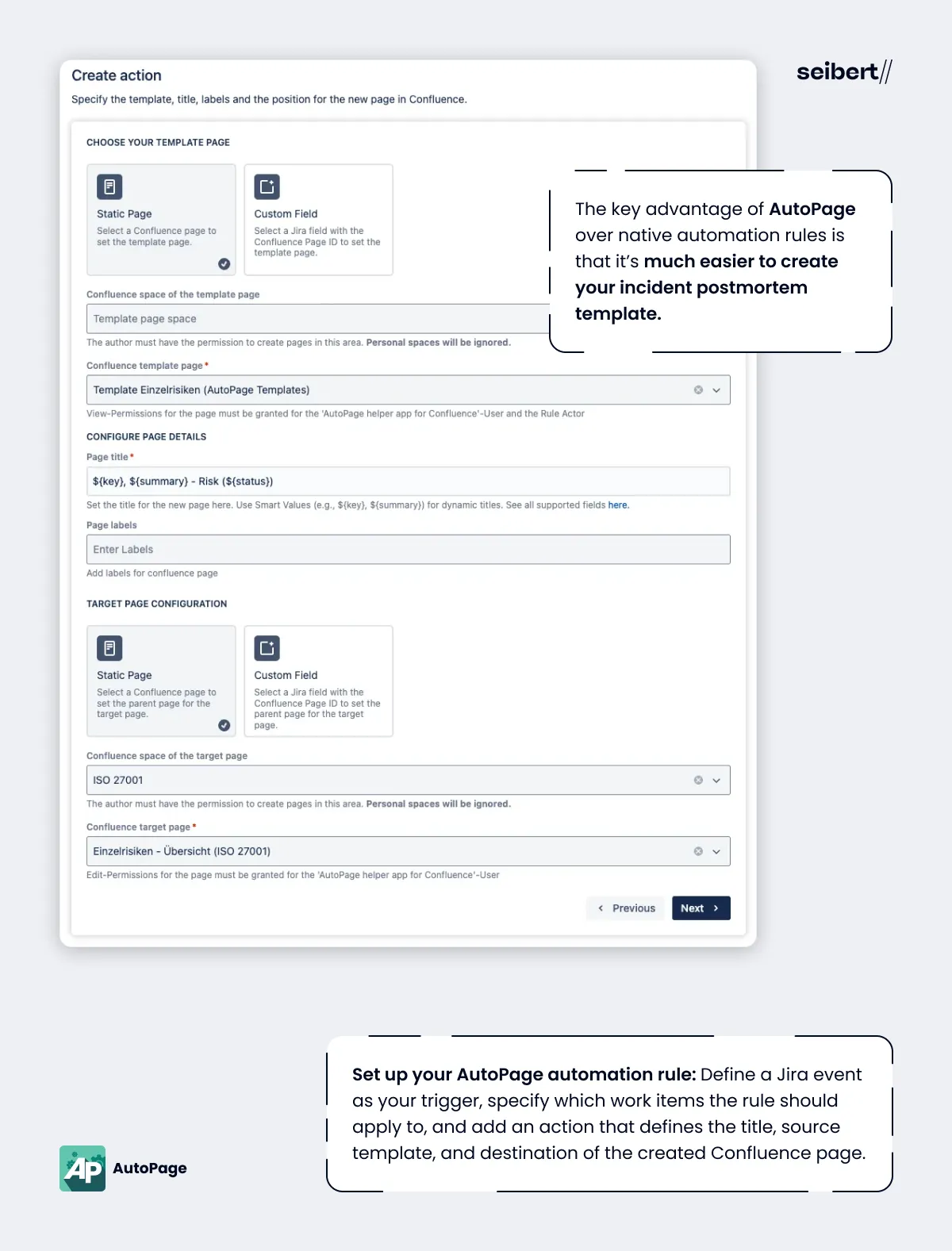
The key advantage of AutoPage over native automation rules is that it’s much easier to create your incident postmortem template.
You create it in Confluence first as a normal Confluence page. So you have the full Confluence creation and editing experience at your disposal, and you’re not trying to configure a template using limited formatting capabilities inside an automation rule.
You configure your page to pull Jira data using AutoPage macros, which are easier to use than smart values. When you’re done, you simply tell AutoPage which Confluence page to use.
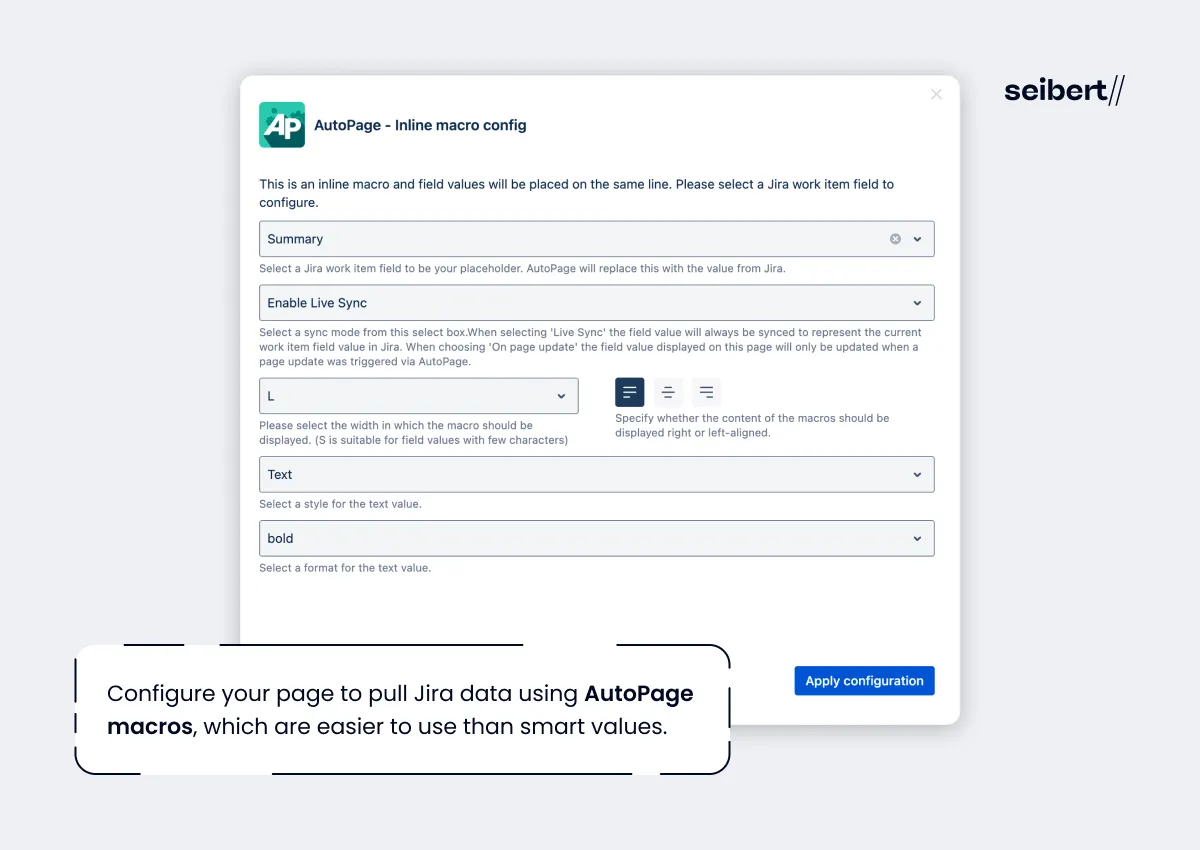
Another advantage is that AutoPage enables a live sync between your JSM ticket and your Confluence page. So if you make changes to any of the fields in your ticket, they’ll immediately propagate to Confluence.
Here’s a summary table that explains the four options.
| Option | How it works | Advantages | Limitations | Sync with Jira post-creation |
|---|---|---|---|---|
| PIR ticket → Confluence Export | Complete the post-incident review (PIR) in Jira Service Management, then export it to Confluence. | Built in; automatically includes PIR fields; no setup required | Only semi-automated (manual export); postmortem writing happens in Jira rather than Confluence; cannot customize PIR or Confluence export templates; requires manual document cleanup; risk of version drift; only for premium and enterprise users | No (one-time export) |
| Jira Automation → Confluence Page | Jira automation rule automatically creates a Confluence page using content defined in the automation rule. | Fully automated page generation; can trigger from incident lifecycle events; can pull Jira data into the page | Cannot use a regular Confluence page as a template; page content editor is limited compared to Confluence; structuring and formatting pages is more difficult; requires admin skills, automation knowledge, and smart values | No (one-time page creation) |
| Atlassian Rovo (AI) | AI drafts a Confluence postmortem from Jira incident data, optionally triggered automatically. | Fast generation; can summarize incident details automatically; can be combined with automation | AI can’t reliably or consistently populate a postmortem template; not suitable for determining root causes; reduces the learning value of the postmortem if overused | No (AI won’t auto-update content it’s already created) |
| AutoPage for Jira & Confluence | Uses a regular Confluence page as a template and automatically creates postmortem pages populated with Jira data via AutoPage macros. | Fully automated page generation; uses full Confluence editing experience; easy template creation and maintenance; easier than smart values; supports follow-up task display; highly customizable | Requires installing and configuring a Marketplace app | Yes |
The upshot
There are various ways of bridging the gap between Jira and Confluence to produce incident postmortems more efficiently.
But the four methods discussed here are not made equal.
The Confluence export of a PIR ticket forces you to document the incident in Jira, not Confluence, and lacks customizability. The Jira automation option works, but automation rules are complex and difficult to maintain, and your document and incident ticket won’t remain in sync post-creation. AI should only really be used as an assistive tool for generating incident summaries or timelines.
The easiest, fastest, and most customizable way of auto-generating postmortem documents with prepopulated information is by using AutoPage for Jira and Confluence.
The app allows you to create structured Confluence pages using Jira data, with full control over templates and field mapping. This ensures that every postmortem is consistent, comparable, and aligned with how your team runs incident investigations.
Want to try AutoPage free for 30 days?